

Choose where the sent copy is saved
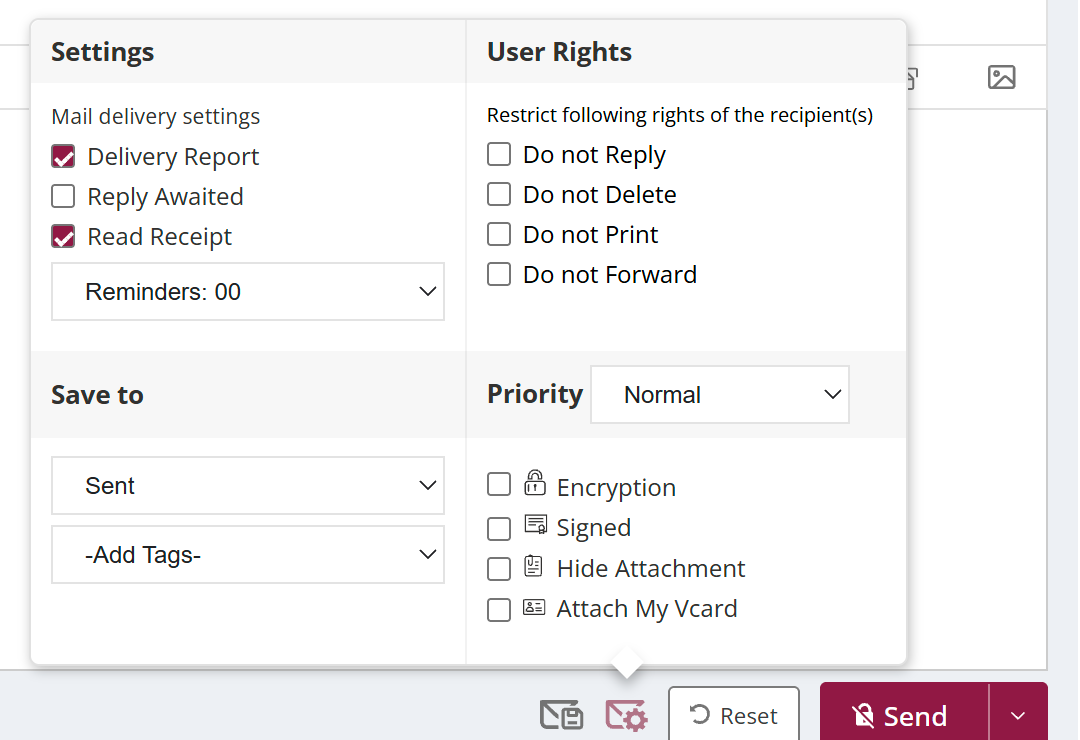
To choose where a sent mail is kept, open Classic compose, click the settings icon (hover text Advance settings) and pick a folder in Save to. Choose Sent, Secure for your password-protected Secure folder, or Do not save to keep no copy. If your admin allows it, other folders are listed too. New compose uses your default from Settings.
How to choose where the sent copy is saved
- Click the arrow next to Compose Mail, turn on Classic and click Compose Mail.
- Click the settings icon (hover text Advance settings).
- In Save to, choose Sent, Secure, Do not save or another folder.
- Send the mail.
When to use it
Ravi, the CFO, sends payroll mails with Save to set to Secure. The sent copies stay in his password-protected Secure folder instead of Sent, where anyone glancing at his screen could open them.
Good to know
- Save to is in Classic compose. To switch, click the arrow next to Compose Mail and turn on Classic.
- Saving to folders other than Sent and Secure needs the Save to Other Folder (Outgoing) option, which your domain administrator turns on.
- With Do not save, there is no copy of the mail in your mailbox.
Common questions
How do I change where all my sent mail goes?
Set your default in Settings with Save to Folder. New compose always uses that default.
Can I save the copy in a shared mailbox's Sent folder?
When you send on behalf of a shared mailbox, you can save the copy in that mailbox's Sent folder. Group mail and encrypted mail cannot be saved there.