

Mark a mail as high priority
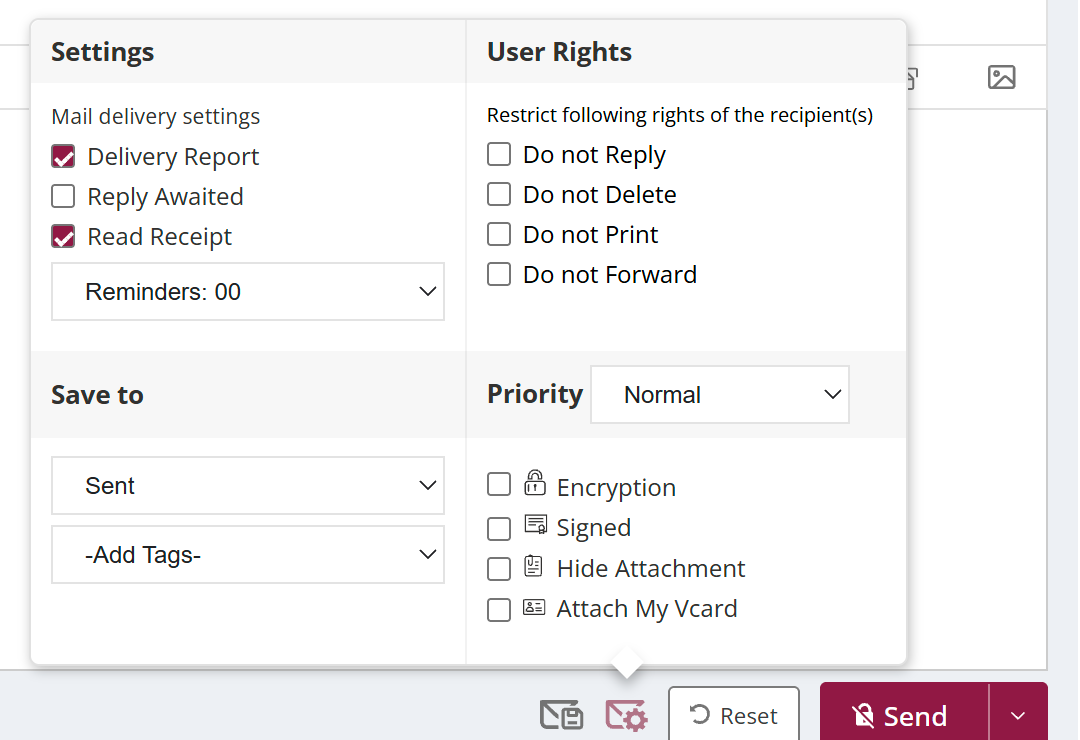
To mark a mail as urgent, open Classic compose, click the settings icon (hover text Advance settings) and set Priority to High. You can also choose Normal or Low. Recipients see the priority marker in their mail list, and XgenPlus users can open all urgent mail from the High Priority category.
For: EveryoneWebClassic compose
How to mark a mail as high priority
- Click the arrow next to Compose Mail, turn on Classic and click Compose Mail.
- Click the settings icon (hover text Advance settings).
- Set Priority to High, Normal or Low.
- Send the mail.
When to use it
The IT team at acme.in sends a notice about tonight's server shutdown with High priority, so staff see it marked as urgent among routine mail.
Good to know
- Priority is in Classic compose. To switch, click the arrow next to Compose Mail and turn on Classic.
- Recipients see the priority as an icon beside the mail in their list, and the default is Normal.
Was this page helpful?
Updated 2026-10-28