

Tag an outgoing mail
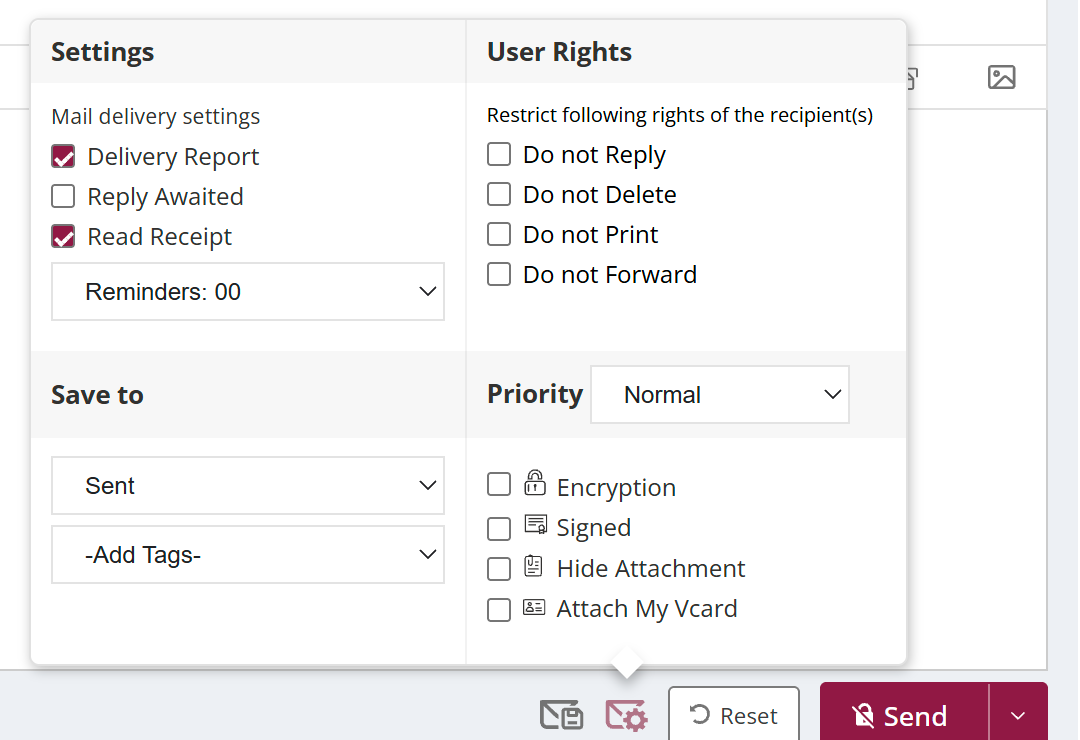
To tag a mail you send, open Classic compose, click the settings icon (hover text Advance settings), then Save To and Add Tags. Choose a Domain Tag your organisation has set up, such as Confidential, or one of your own Email Tags. Then send the mail. The tag stays with the mail, so you can search and filter by it later.
For: EveryoneWebClassic compose● Unique to XgenPlus
How to tag an outgoing mail
- Click the arrow next to Compose Mail, turn on Classic and click Compose Mail.
- Click the settings icon (hover text Advance settings), then Save To, then Add Tags.
- Choose a Domain Tag or an Email Tag.
- Send the mail.
When to use it
A ministry tags outgoing mail as "RTI" or "Court case" with domain tags. When an audit comes, officers search by tag and find every related mail in minutes.
Good to know
| Tag type | Who creates it |
|---|---|
| Domain Tag | Your domain administrator, for everyone in the organisation. |
| Email Tag | You, for your own use. |
- Email tags are in Classic compose. To switch, click the arrow next to Compose Mail and turn on Classic.
Was this page helpful?
Updated 2026-10-28