

Set default tracking for every mail you send
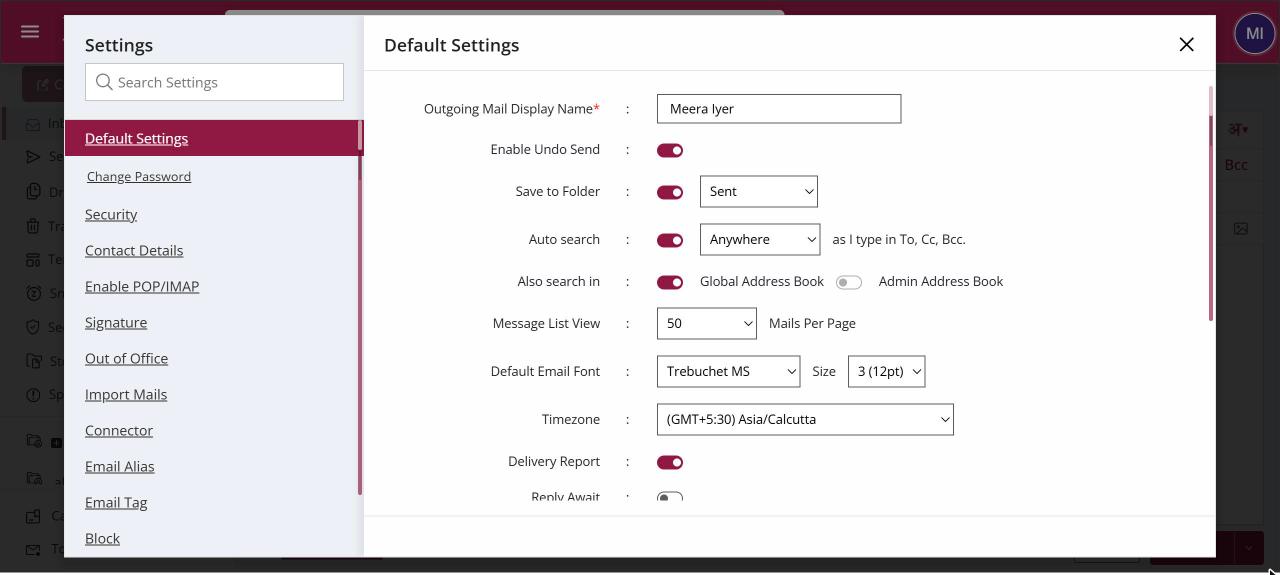
To set sending defaults, open Settings › Default Settings. Turn on Delivery Report, Reply Await or Read Receipt to use them on every new mail. Use Save to Folder to choose where sent copies go, such as Sent or Secure, and Show Mail Confirmation after sending email for a confirmation after each send. Changes save straight away.
For: EveryoneWeb
How to set default tracking for every mail you send
Where: Settings › Default Settings
- Click your profile picture, then Settings, and open Default Settings.
- Turn on Delivery Report, Reply Await or Read Receipt as you need.
- Turn on Save to Folder and choose the folder for copies of sent mail.
- Turn on Show Mail Confirmation after sending email if you want a confirmation each time.
When to use it
Ravi in collections at acme.in sends payment reminders all day. He turns on Reply Await by default, so every reminder that gets no answer shows up under Reply Awaited for a follow-up call.
Options
| Option | What it does |
|---|---|
| Delivery Report | Asks for confirmation that each mail was delivered. Available only if your organisation allows it. |
| Reply Await | Tracks sent mail until someone replies. Unanswered mail shows under Reply Awaited in Category. |
| Read Receipt | Asks recipients to confirm they have read the mail. |
| Save to Folder | Saves copies of sent mail in Sent, in the protected Secure folder, or in one of your own folders. Turn it off to keep no copy. |
| Show Mail Confirmation after sending email | Shows a confirmation once a mail has been sent. |
Good to know
- Saving sent copies in Secure keeps them behind your secure key, which suits confidential work.
- A read receipt is a request. The recipient's mail app may not send one back.
Common questions
Why is Delivery Report greyed out?
Your organisation has not turned on delivery reports. Ask your administrator.
Can I still change these options for one mail?
Yes. These are only the starting values for new mail. Change them in Compose for a single mail.
For admins
Administrators control this feature for the whole domain:
Was this page helpful?
Updated 2026-10-28