

Switch to Classic compose
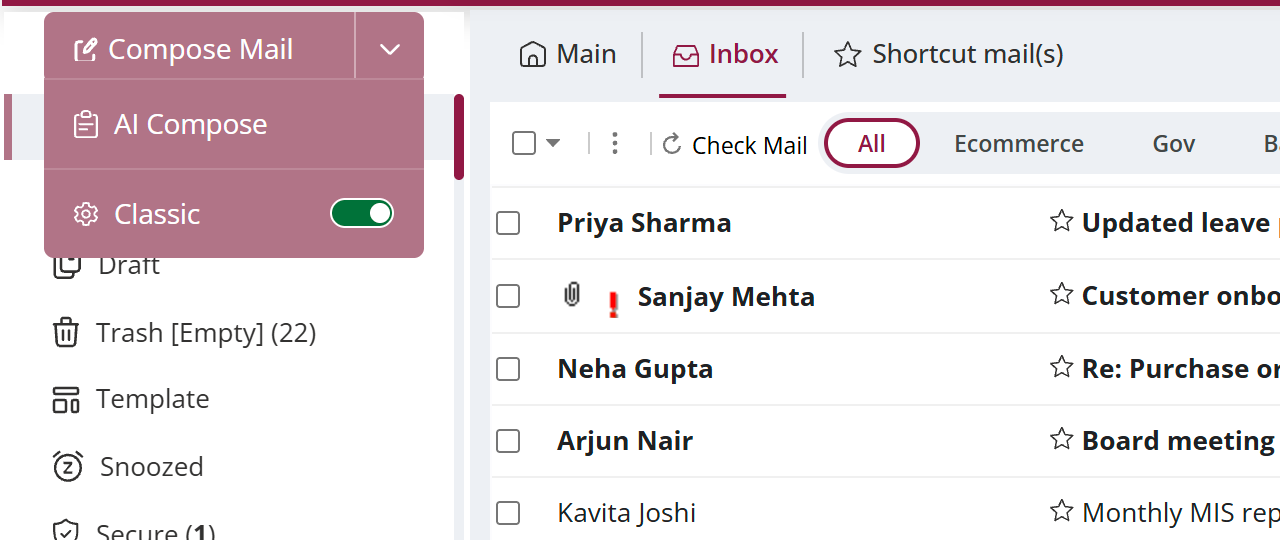
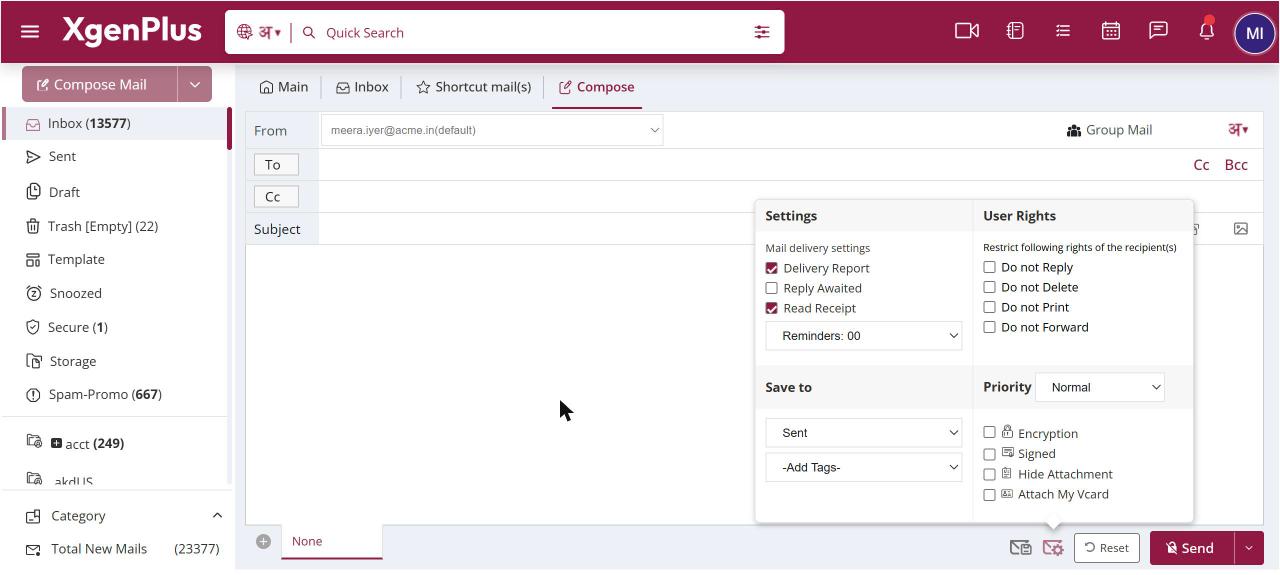
To use Classic compose, click the arrow next to Compose Mail and turn on Classic. From then on, Compose Mail opens the Classic window, which has advanced options such as rights, priority, PGP, templates and Group Mail. Your choice is remembered in this browser. Turn Classic off to go back to the new compose window.
How to switch to classic compose
- Click the small arrow next to Compose Mail.
- Turn on Classic.
- Click Compose Mail. The Classic compose window opens.
- To go back, click the arrow again and turn Classic off.
When to use it
The company secretary needs to send board papers with Do not Forward set. She turns on Classic, composes the mail there and ticks the right under User Rights.
Good to know
- The setting is remembered per browser. On another computer, turn it on again.
- Classic compose opens mails in tabs, up to five at a time.
- Some open compose windows also show a Switch to Old Compose link.
Common questions
What happens to a mail I have already started?
If you use Switch to Old Compose inside an open compose window, what you have typed is saved as a draft and opened in Classic compose.
Which options are only in Classic compose?
User rights, priority, PGP encryption and signing, hide attachment, templates, preview, Group Mail, Reply Awaited, email tags, Attach My Vcard and Attach Event.