

Schedule a mail for later
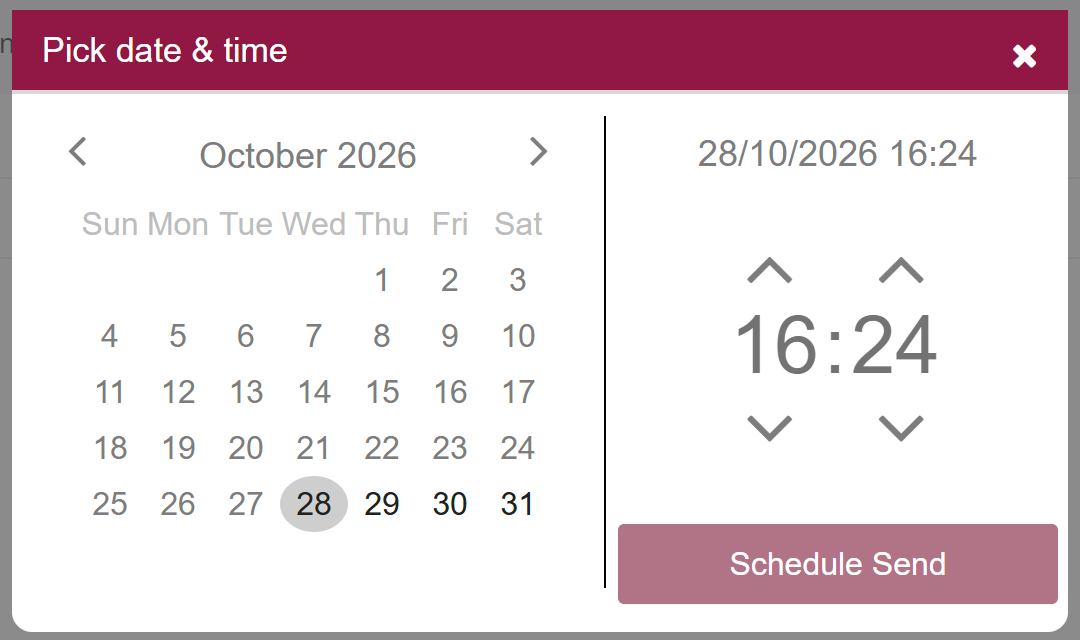
To schedule a mail, write it as usual, click the arrow next to Send and choose Schedule Send. Pick the date and time and confirm. XgenPlus sends the mail at that time with no further action from you, even if you are logged out. You cannot pick a date or time in the past.
For: EveryoneWebAndroidTime-saving
How to schedule a mail for later
- Open Compose Mail and write your mail.
- Click the arrow next to Send.
- Choose Schedule Send.
- In Pick date & time, choose when the mail should go and confirm.
When to use it
Meera, the MD's assistant at acme.in, writes the New Year greeting to all clients on 28 December and schedules it for 1 January at 12:05 am, so it arrives first thing without anyone at the desk.
Good to know
- A confirmation tells you the date and time the mail is scheduled for.
- A back date or a time that has already passed is not accepted.
- The mail goes from the server at the scheduled time. Your computer does not need to be on.
Common questions
Do I need to stay logged in until it is sent?
No. The server sends the mail at the time you picked. You can log out or close the browser.
Where do I find mails I have scheduled?
Open the Scheduled Mail category in the left pane.
Can I schedule a mail in Classic compose?
Yes. In Classic compose use Send on later date and pick the date and time from the calendar.
Was this page helpful?
Updated 2026-10-28