

Create your own email tags
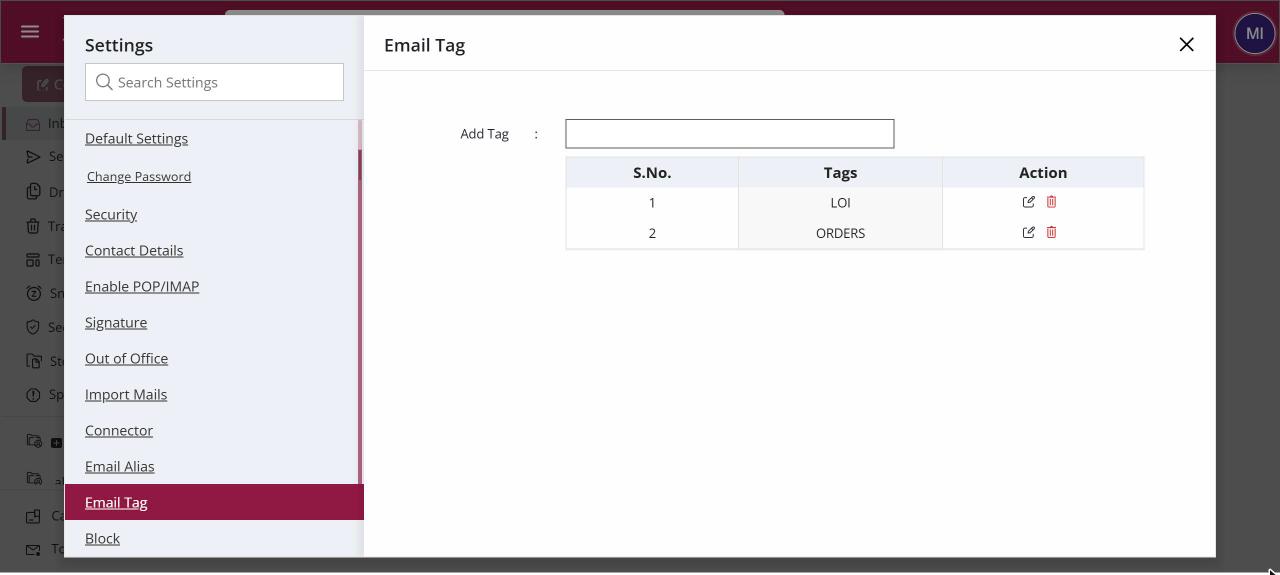
To create email tags, open Settings › Email Tag, type a tag name of up to 20 characters and click Add. Edit or delete tags from the list. Your tags then appear when you tag a mail and in Search by Tag. Your organisation's own tags are kept separately, and you can't reuse their names.
For: EveryoneWeb
How to create your own email tags
Where: Settings › Email Tag
- Click your profile picture, then Settings, and open Email Tag.
- Type the tag name.
- Click Add. The tag appears in your list.
- Use the icons in the list to edit or delete a tag.
When to use it
Vikram, a project manager at acme.in, creates the tags "Approval", "Invoice" and "Escalation". He tags mails as they come in, and before each review he searches by tag to see all open approvals.
Good to know
- A tag name can be up to 20 characters.
- You can have up to 20 personal tags.
- If a tag already exists for your whole organisation, you see "Email tag already exist at domain side". Use that tag instead.
Was this page helpful?
Updated 2026-10-28