

Track mails that need a reply
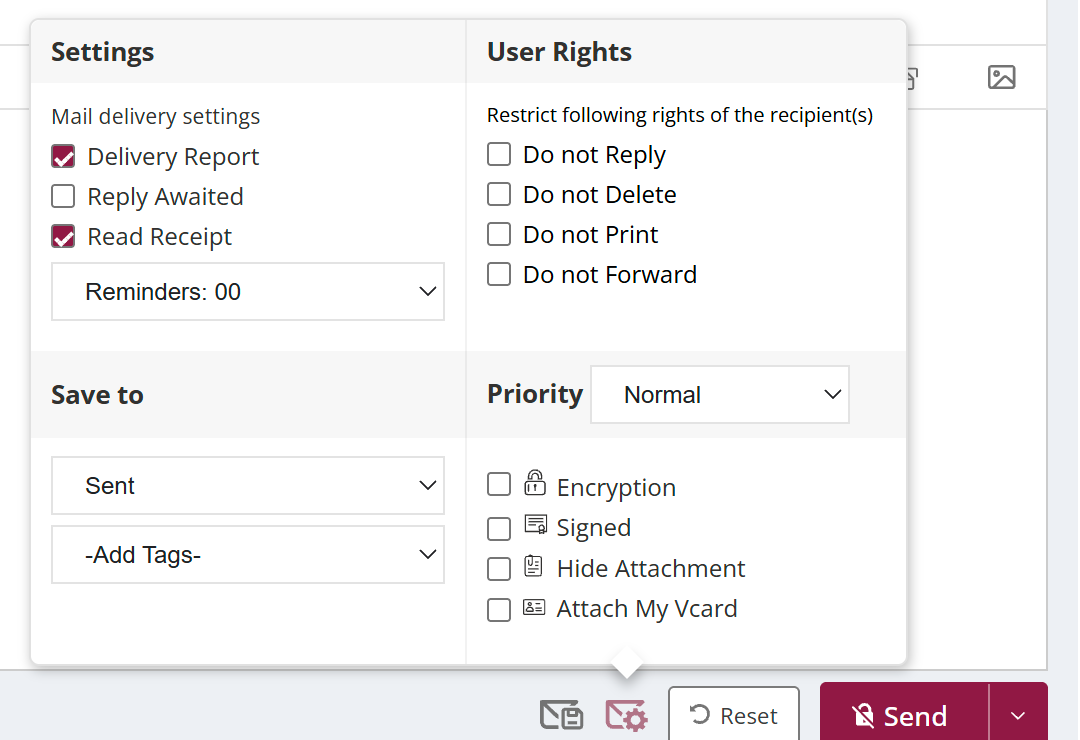
To track a mail you need an answer to, open Classic compose, click the settings icon (hover text Advance settings) and tick Reply Awaited before sending. The mail then appears in the Reply Awaited category in the left pane, so you can see which sent mails are still waiting for a response and follow up.
For: EveryoneWebClassic compose● Unique to XgenPlus
How to track mails that need a reply
- Click the arrow next to Compose Mail, turn on Classic and click Compose Mail.
- Click the settings icon (hover text Advance settings).
- Tick Reply Awaited.
- Send the mail.
- Open the Reply Awaited category in the left pane to follow up later.
When to use it
Sandeep, a purchase officer, sends a request for quotation to eight vendors with Reply Awaited ticked. A week later he opens Reply Awaited to see which vendors have not responded and chases them.
Good to know
- Reply Awaited is in Classic compose. To switch, click the arrow next to Compose Mail and turn on Classic.
- You can turn it on by default in your mail settings.
Was this page helpful?
Updated 2026-10-28