

Send a quick reply without opening compose
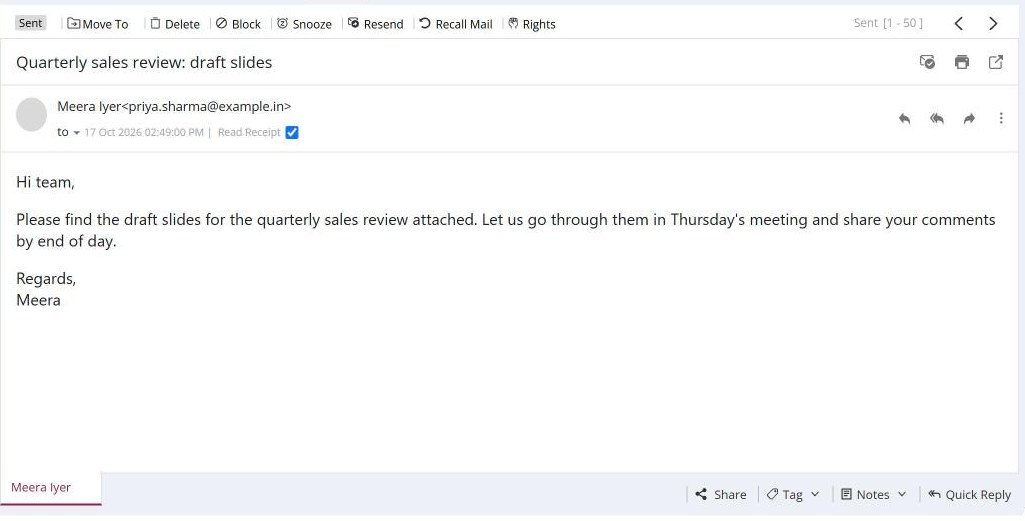
To reply quickly, right-click a mail in the list and choose Quick Reply, or open the mail and click Quick Reply in the bar at the bottom. Type your message and click send. Your signature is added if it is turned on. Click Switch to Advance Reply if you need full formatting.
For: EveryoneWebTime-saving
How to send a quick reply without opening compose
- In the mail list, right-click the mail and choose Quick Reply. Or open the mail and click Quick Reply in the bar at the bottom.
- Type your reply. In the list version you can also add Cc or Bcc and attach a file.
- Click Send (or the send arrow in the reading pane).
When to use it
Rohit's team member asks for leave on Friday. Rohit right-clicks the mail, chooses Quick Reply, types "Approved, enjoy the long weekend" and sends it without leaving his Inbox.
Options in the list version
| Option | What it does |
|---|---|
| Add Cc / Add Bcc | Shows the Cc or Bcc box. |
| Reply With: Original Message | Quotes the original mail below your reply. |
| Reply With: Signature | Adds your signature. |
| Attachment | Attaches a file to the reply. |
| Switch to Advance Reply | Opens the full compose window with what you typed. |
Good to know
- You can add up to 10 addresses in the list version. XgenPlus warns you about duplicate or invalid addresses.
- The right-click menu also offers Quick Forward, Reply, Forward and Add to Contacts.
Common questions
Why is Quick Reply missing for some mails?
It is hidden when your administrator has switched off replying for your account, when the sender stopped replies to that mail, or when a mail shared with you does not allow replies.
For admins
Administrators control this feature for the whole domain:
Was this page helpful?
Updated 2026-10-28