

Install and sign in to XgenOffice for Windows
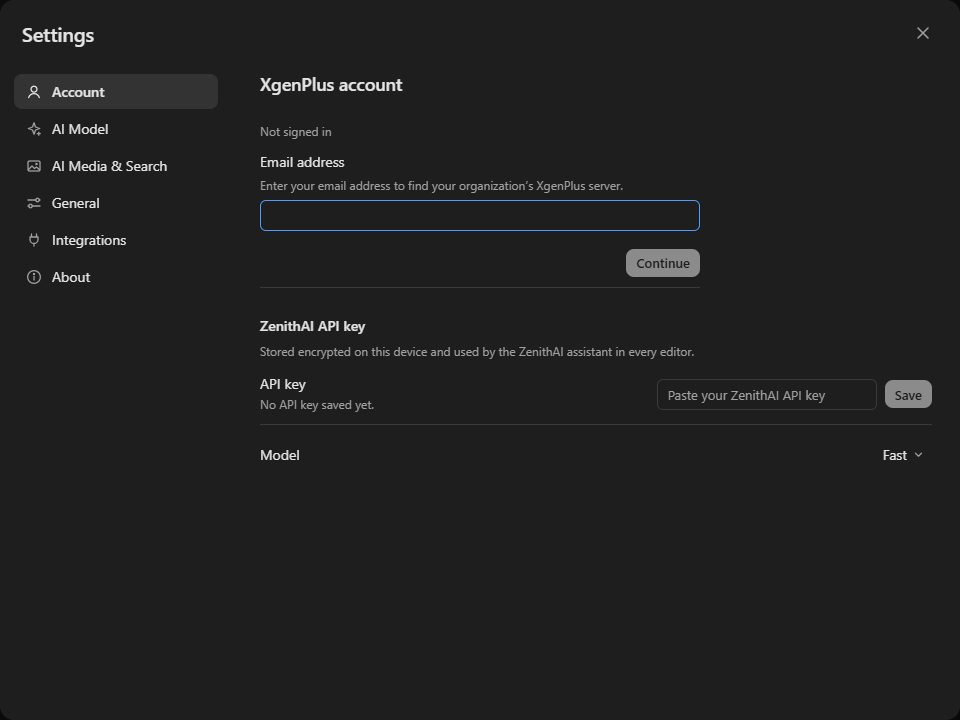
Download Xgen Office (Beta) from the XgenPlus download page and run the installer. Open the app, then Settings > Account, type your XgenPlus email address and click Continue. In the XgenPlus mobile app choose Web Login, then TOTP, type the code as the WebLogin code and click Sign in.
How to install and sign in to XgenOffice for Windows
Where: Settings › Account
- Open xgenplus.com/download.html and click Download Xgen Office (Beta).
- Run the downloaded installer and follow the steps.
- Open XgenOffice and go to Settings > Account.
- Type your XgenPlus email address and click Continue.
- In the XgenPlus mobile app, choose Web Login, then TOTP.
- Type the code in WebLogin code and click Sign in.
When to use it
Anita at example.in installs the app on her new office laptop. She types anita@example.in, opens Web Login in the XgenPlus app on her phone, reads the code and is signed in within a minute.
Good to know
- XgenOffice for Windows is in Beta: free for paid XgenPlus plans, provided without support or warranty until its final release.
- The installer is for Windows only.
- After you click Continue, the app finds your organisation's XgenPlus server from your email address. Back returns to the email step.
- When a new version is ready, the app offers to update and restart.
Common questions
Can I use XgenOffice for Windows without signing in?
No. You must sign in with your XgenPlus account before you can use the editors.
Why can't I sign in?
XgenOffice for Windows works only for mailboxes on a paid XgenPlus plan. Check that you typed your full email address and a fresh code from the XgenPlus mobile app.
How do I sign out of XgenOffice for Windows?
Open Settings > Account and click Sign out.