

Write documents with AI in XgenOffice Docs
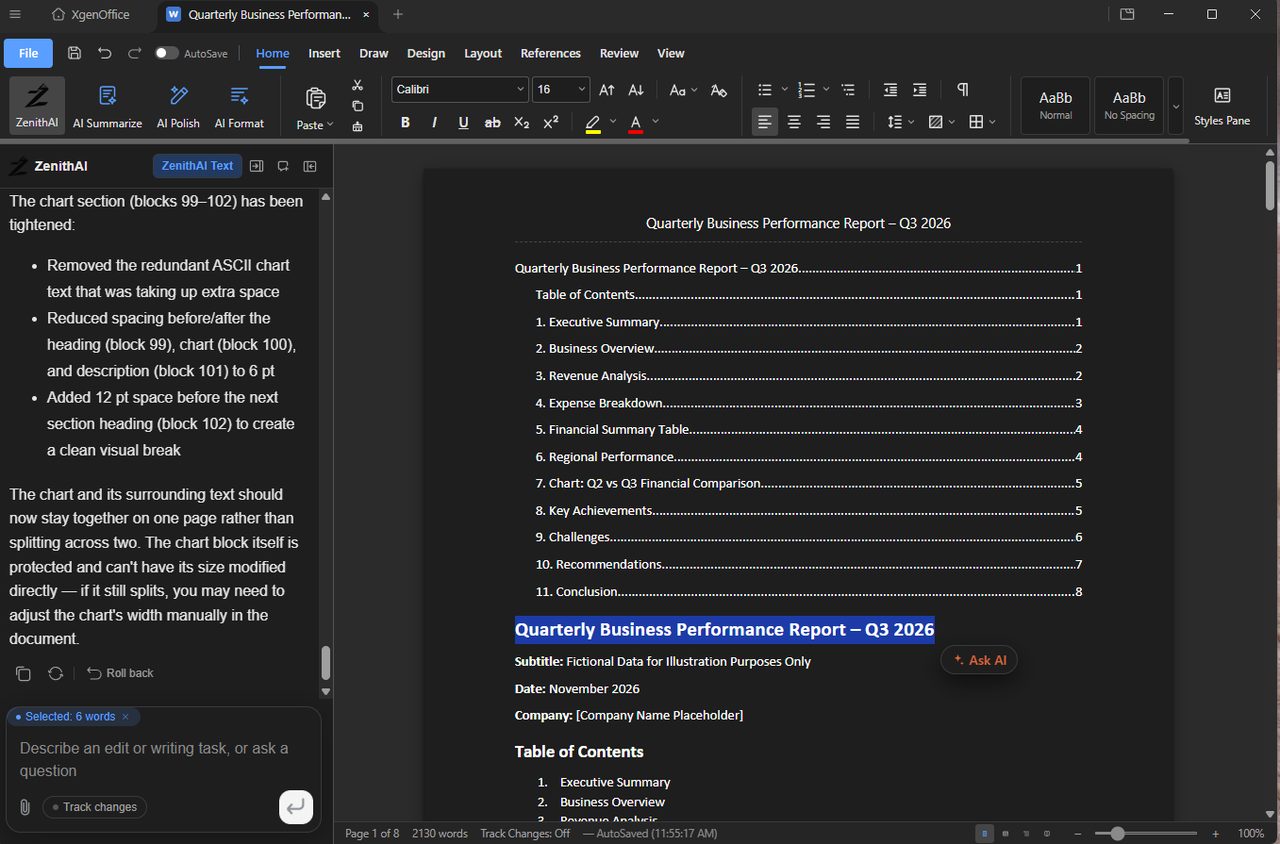
Docs in XgenOffice for Windows edits Word (.docx) files. In a new document, describe what you need in the ZenithAI panel and the AI writes the first draft on the page. Select text and click Ask AI to change only that part. AI Summarize, AI Polish and AI Format are on the Home tab.
Beta
For: EveryoneWindowsAI
How to write documents with AI in XgenOffice Docs
- On the Home screen, create a document or open a .docx file.
- In the ZenithAI panel, describe the document, or click a starter such as Write a weekly project report for me.
- Select text and click Ask AI to rewrite, shorten or format just that part.
- Turn on Track changes in the panel if you want to accept or reject each AI edit.
- Save with Save or Ctrl+S.
When to use it
Anita needs a product launch announcement. She clicks Draft a product launch announcement, adds the launch date and price, and gets a first draft. She selects the title, clicks Ask AI and types "make it red".
Options
| Button | What it does |
|---|---|
| ZenithAI | Opens or closes the AI panel |
| AI Summarize | Summarises the document |
| AI Polish | Improves the wording |
| AI Format | Tidies the formatting |
| Ask AI | Appears when you select text; the request then applies to the selection |
| Track changes (in the panel) | Shows AI edits as tracked changes. Off by default |
Good to know
- XgenOffice for Windows is in Beta: free for paid XgenPlus plans, provided without support or warranty until its final release.
- The ribbon has Home, Insert, Draw, Design, Layout, References, Review and View, much like Word.
- Roll back under an AI reply undoes that reply's changes.
- The status bar shows the page, the word count, whether Track Changes is on and when the file was last saved.
Common questions
Can I review AI edits before keeping them?
Yes. Turn on Track changes next to the paperclip in the AI panel. AI edits then appear as tracked changes that you accept or reject on the Review tab.
Why can't the AI change a chart or table?
Some parts of a document, such as charts, are protected from AI edits. Change them yourself on the page.
Was this page helpful?
Updated 2026-11-06