

Read and annotate PDFs in XgenOffice
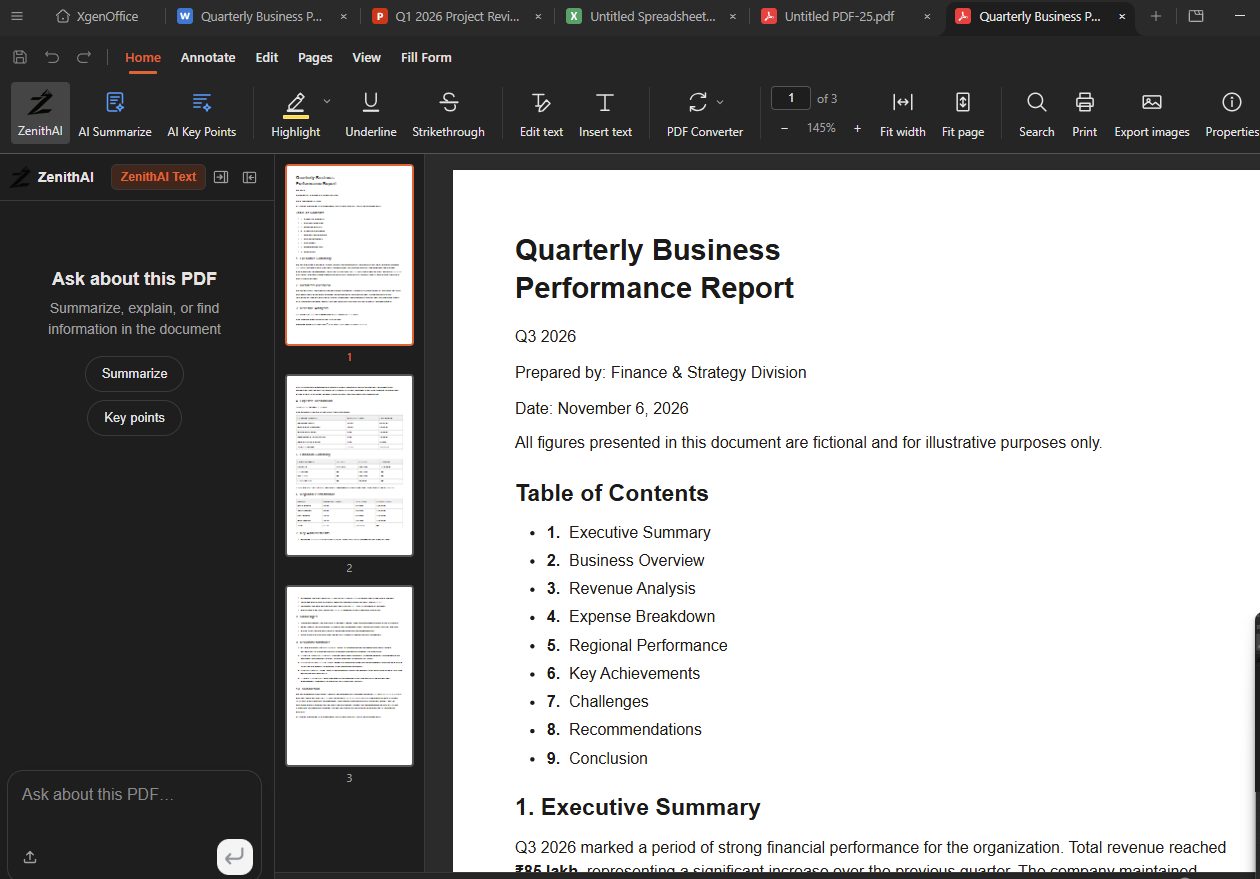
The PDF app in XgenOffice for Windows opens PDF files for reading, highlighting, notes, filling forms and signing. Click AI Summarize or AI Key Points on the Home tab, or ask the ZenithAI panel a question about the document. Use the Pages tab to rotate, delete, reorder, extract or insert pages.
How to read and annotate PDFs in XgenOffice
- Open a PDF from the Home screen.
- Click AI Summarize or AI Key Points, or type a question under "Ask about this PDF".
- Use Highlight, Underline or Strikethrough on the Home tab, or the Annotate tab for notes and shapes.
- Fill in a form on the Fill Form tab.
- Save with Ctrl+S.
When to use it
Meera receives a 40-page vendor contract as a PDF. She clicks AI Key Points to see the main terms, highlights the payment clause, signs the last page and saves it.
Good to know
- XgenOffice for Windows is in Beta: free for paid XgenPlus plans, provided without support or warranty until its final release.
- To sign, draw or type a signature and click where it goes. Esc cancels.
- A text watermark, and a header and footer with page numbers, are added when you save.
- Export images saves every page as a PNG picture.
- The AI can read, search and highlight text, fill form fields, and rotate or delete pages. It cannot sign, stamp or insert pages.
Common questions
Can I open a password-protected PDF?
Yes. The app asks for the password. If the file stays locked, you can view it but not change it.
Can I merge or split PDFs?
Use Insert PDF to add another PDF's pages and Extract pages to save some pages, for example 1-3,5, as a new file.
Can it read scanned PDFs?
No. There is no text recognition (OCR) yet, so the AI cannot read text in scanned pages. Redaction and compression are also not available.