

Make a presentation with AI in XgenOffice
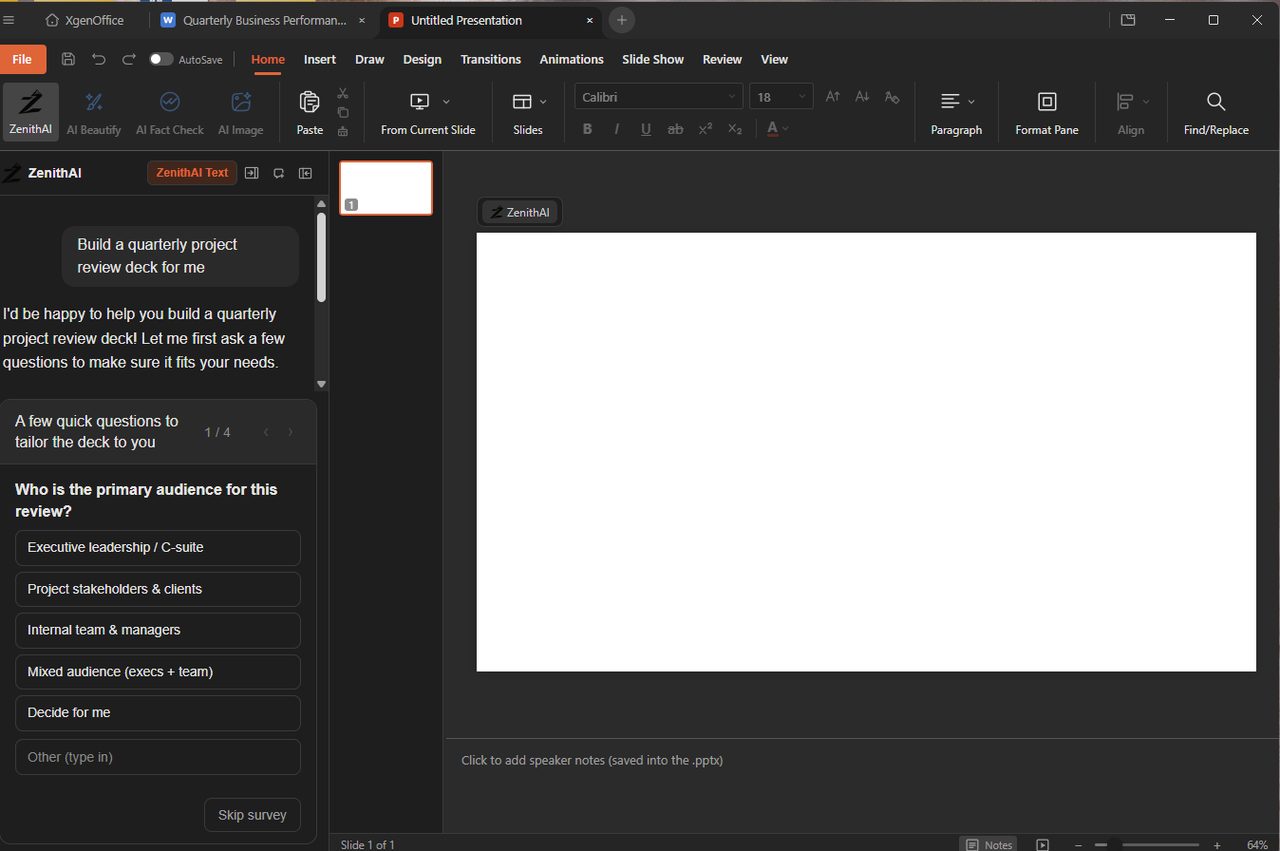
Slides in XgenOffice for Windows edits PowerPoint (.pptx) files. In the ZenithAI panel, ask for a deck such as "Build a quarterly project review deck". Answer the short survey or click Skip survey, and the AI creates the slides. AI Beautify, AI Fact Check and AI Image help improve each slide.
Beta
For: EveryoneWindowsAI
How to make a presentation with AI in XgenOffice
- Create a presentation from the Home screen and click ZenithAI.
- Type what the deck is about, for example "Build a quarterly project review deck for me".
- Answer the questions about audience and focus, or click Decide for me or Skip survey.
- Wait while the slides are created and checked for layout.
- Replace the placeholder text with your own figures, then save with Ctrl+S.
When to use it
Anita has a review with leadership on Monday. She asks for a quarterly review deck, picks "Executive leadership" as the audience and gets nine slides. She replaces the sample numbers and adds her logo.
Options
| Button | What it does |
|---|---|
| AI Beautify | Improves the look of the slide |
| AI Fact Check | Checks the statements on the slide |
| AI Image | Finds or makes a picture for the slide |
Good to know
- XgenOffice for Windows is in Beta: free for paid XgenPlus plans, provided without support or warranty until its final release.
- The AI buttons are on the Home tab and also float above the slide.
- Generated decks use sample content. Check every figure before you present.
- Slide Show presents from the beginning (F5) or the current slide (Shift+F5). File exports the deck as PDF or pictures.
Common questions
Where do I add speaker notes?
Click "Click to add speaker notes" under the slide. Notes are saved in the .pptx file. The Notes button in the status bar shows or hides them.
Can I open old .ppt or password-protected files?
No. Slides opens .pptx files without a password. Save an old .ppt file as .pptx in another app first.
Was this page helpful?
Updated 2026-11-06