

Add an AI key in XgenOffice for Windows
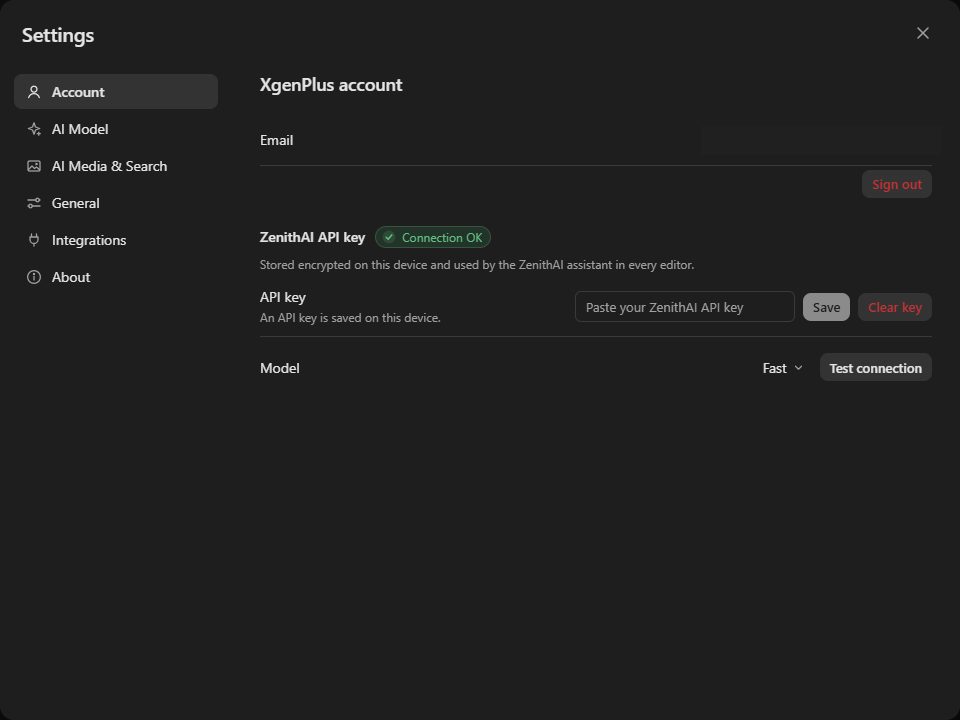
To use AI in XgenOffice for Windows, open Settings > Account, paste a ZenithAI API key or any other OpenAI-compatible API key in API key and click Save. Click Test connection and look for Connection OK. The key is stored encrypted on your PC and used by the assistant in every editor.
How to add an AI key in XgenOffice for Windows
Where: Settings › Account › ZenithAI API key
- Open Settings and click Account.
- Paste your API key in API key and click Save.
- Choose a Model if you want, Instant, Fast or Smart.
- Click Test connection and check that Connection OK appears.
When to use it
Meera at acme.in has a ZenithAI API key from her company. She pastes it once in Settings, clicks Test connection, and the ZenithAI panel now works in Docs, Sheets, Slides and PDF.
Options
| Option | What it does | Default |
|---|---|---|
| API key | The key the assistant uses. Shows "An API key is saved on this device." once saved | None |
| Clear key | Removes the saved key | |
| Model | Instant, Fast or Smart | Fast |
| Test connection | Checks the key and shows Connection OK |
Good to know
- XgenOffice for Windows is in Beta: free for paid XgenPlus plans, provided without support or warranty until its final release.
- What you ask, and the files you attach, are sent to the AI provider of your key.
- The key stays on this PC. Add it again on each PC where you use the app.
Common questions
Which keys work?
A ZenithAI API key or any other OpenAI-compatible API key. Your AI provider may charge for its use under its own terms.
How do I remove the key?
Open Settings > Account and click Clear key. The AI assistant stops working until you add a key again.
Can I change the model later?
Yes. Fast is the default. Choose Instant or Smart in Model at any time, then click Test connection.