

Upload files to Storage
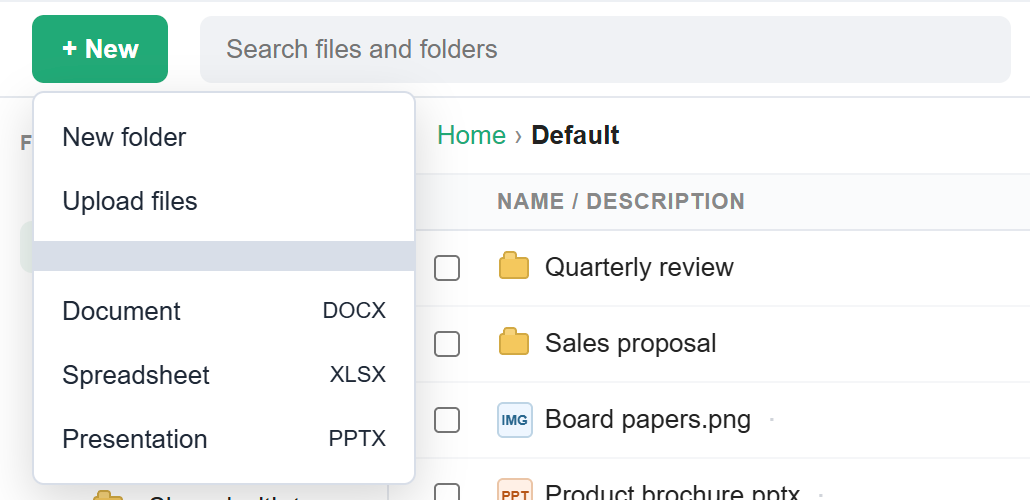
To upload, open Storage, go to the folder you want, then click + New and choose Upload files. Pick one or more files. You can also drag files from your computer onto the file list. A queue at the bottom shows each file's progress. Empty files, duplicates and uploads beyond your space limit are rejected.
For: EveryoneWebAndroidTime-saving
How to upload files to storage
- Open Storage and go to the folder you want.
- Click + New, then Upload files, and choose the files.
- Or drag files from your computer and drop them on the file list.
- Watch the queue at the bottom until every file is done.
When to use it
Anita in HR drags 25 signed offer-letter PDFs into HR/Offers 2026 in one go, instead of attaching them to mails one by one.
Good to know
- While you drag files over the window, you see where they will be uploaded.
- The queue shows "Uploading 3 of 25" and marks any file that fails.
- If a file with the same name already exists in the folder, you see "File already exists". Rename one of them first.
Common questions
Why was my file rejected?
Common reasons are an empty (0 KB) file, a file with the same name already in the folder, quotes or other characters that are not allowed in the name, or not enough space left.
Was this page helpful?
Updated 2026-10-28