

Rename, move, download or delete files
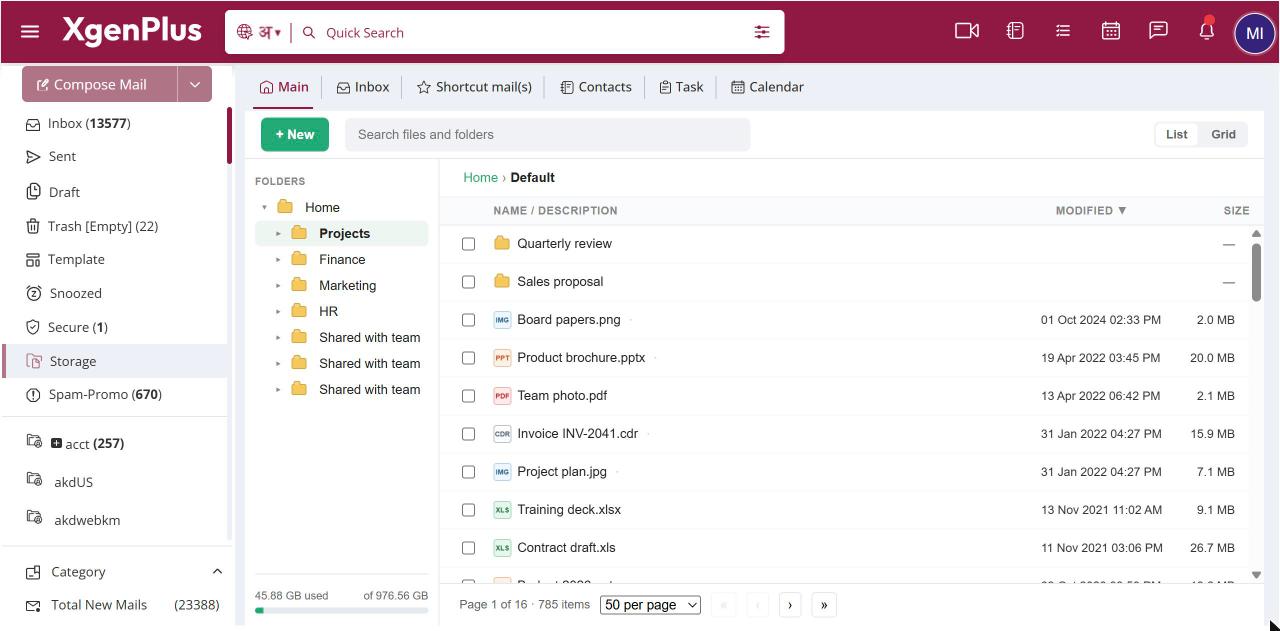
To manage a file, open Storage and right-click it, or tick several files to show the selection bar. Choose Rename, Edit note, Move..., Download, Copy link or Delete. Delete is immediate and permanent. Storage has no recycle bin, and any links you sent to that file stop working.
For: EveryoneWeb
How to rename, move, download or delete files
- Open Storage and find the file.
- Right-click the file, or tick several files to show the selection bar.
- Choose Rename, Edit note, Move..., Download, Copy link or Delete.
- For Move..., pick the destination folder. For Delete, confirm.
When to use it
Anita, an accountant at example.in, adds the note "FY25 final, approved by CFO" to the balance sheet file and moves it into Audit 2025.
Options
| Action | What it does |
|---|---|
| Rename | Changes the file name, up to 255 characters. Shortcut F2. |
| Edit note | Adds a short description, up to 100 characters, shown under the name. Shortcut Shift+F2. |
| Move... | Moves one or more files to another folder. |
| Download | Saves the file to your computer. |
| Copy link | Copies the file's link for your own use. |
| Delete | Deletes the file permanently after you confirm. |
Good to know
Delete is permanent. There is no recycle bin or undo. People you sent a link to can no longer open the file.
Common questions
Can I get back a file I deleted?
No. Storage has no recycle bin, so a deleted file is gone for good. Download a copy first if you might need it.
Can I download several files as one ZIP?
No. When you download several files, they download one after another as separate files.
Was this page helpful?
Updated 2026-10-28