

Write a new mail
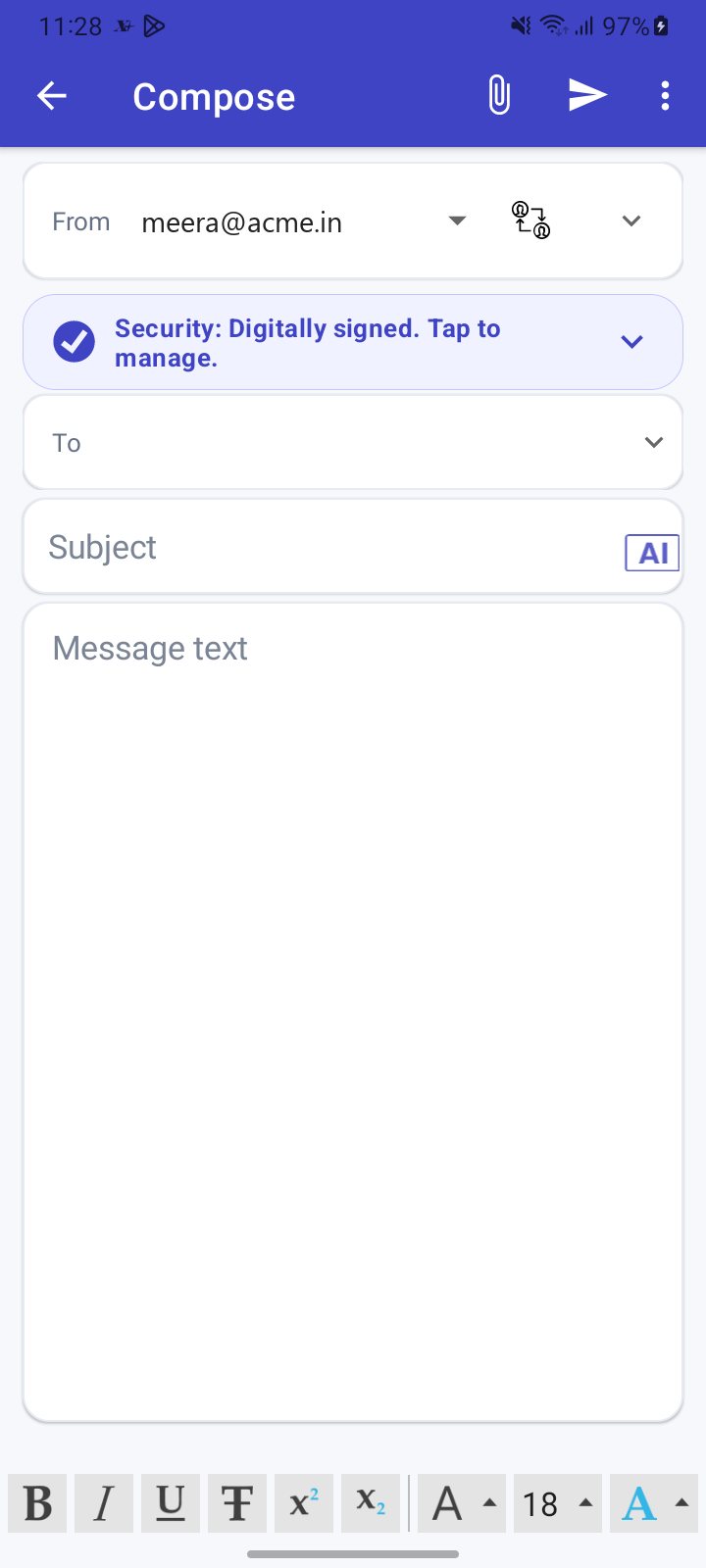
Tap the round compose button. Choose the From address, type recipients in To, open the expander for Cc and Bcc, then write the subject and message. Use the formatting toolbar for bold, links and pictures. Tap Send, or leave the screen to keep a draft.
For: EveryoneAndroid
How to write a new mail
Where: Message list › round compose button
- Tap the round compose button (or Compose in the toolbar).
- Pick the From address if you have aliases. With 2 or more accounts a button lets you switch account.
- Type recipients in To. Open the expander for Cc, Bcc and Reply to.
- Write the Subject and your message. Use the toolbar for formatting.
- Tap Send.
When to use it
Priya writes to a client from her office alias, copies her manager in Cc and adds the company signature.
Options
| Part | What it does |
|---|---|
| From | Your address and any aliases from your XgenPlus profile |
| Formatting toolbar | Bold and other styles, undo, redo, clear formatting, link, insert or capture a picture |
| Quoted text | On a reply or forward, controls to include, edit or delete the original |
| Signature | A separate field you can edit for this mail. It appears if your identity uses a signature. |
Good to know
- Mail is sent as formatted text by default. Plain text can be chosen in account settings.
- If the subject is empty, the first tap on Send warns you. Tap again to send anyway.
- Signature, quote prefix and Cc/Bcc defaults are in account settings.
- On XgenPlus accounts the compose button also offers extra choices, which have their own pages.
Was this page helpful?
Updated 2026-10-28