

Write a mail on iPhone
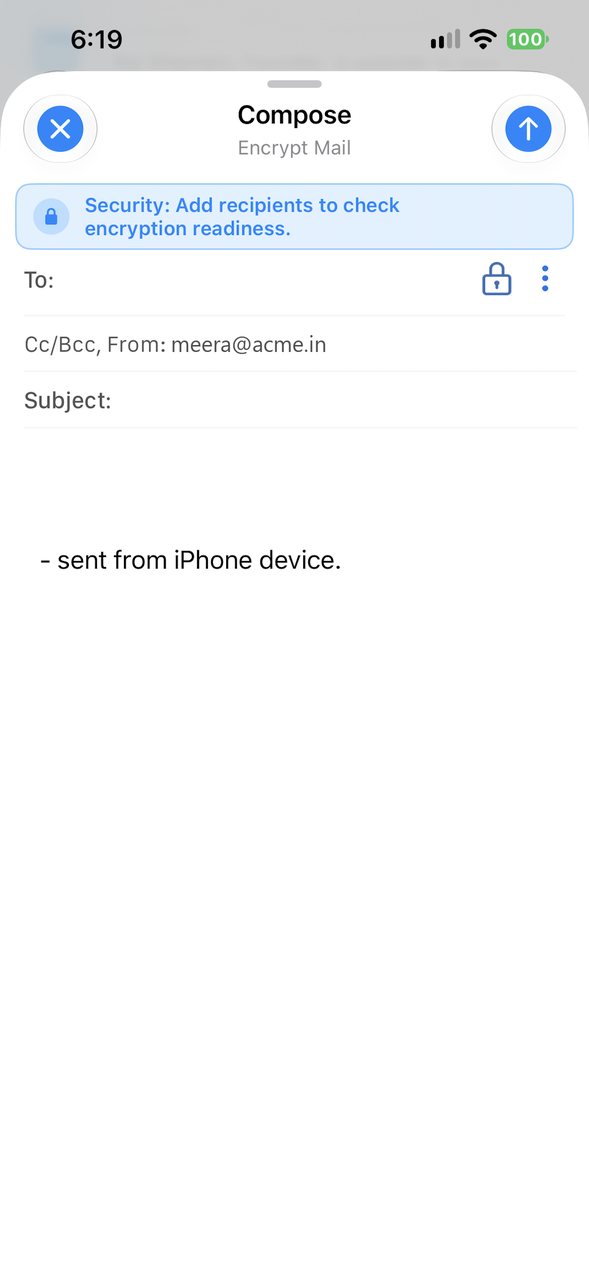
In the XgenPlus iPhone app, tap the compose icon at the top right of the Inbox. Type recipients in To, tap Cc/Bcc, From to add copies or change the sending address, then write the Subject and message. Tap the blue arrow at the top right to send. Tap the cross at the top left to close.
For: EveryoneWebAndroidiPhoneSecurity
How to write a mail on iPhone
- Tap the compose icon at the top right of the Inbox.
- Type the recipients in To.
- Tap Cc/Bcc, From to add Cc or Bcc, or to choose another From address.
- Type the Subject and your message.
- Tap the blue arrow at the top right to send.
When to use it
Anita needs to send a quote while travelling. She taps compose on her iPhone, adds the client in To and her manager in Cc, types the subject and sends it in a minute.
Screen parts
| Part | What it does |
|---|---|
| Cross (top left) | Closes compose. |
| Blue arrow (top right) | Sends the mail. |
| Security banner | Shows whether the mail can be encrypted for these recipients. |
| Lock icon | Encryption for this mail. |
| Cc/Bcc, From | Shows the Cc, Bcc and From lines. |
Good to know
- To, Cc and Bcc work as on the web: everyone sees To and Cc, nobody sees Bcc.
Common questions
What does "Add recipients to check encryption readiness" mean?
The app checks whether each recipient can receive encrypted mail once you add them. The lock icon next to To controls encryption.
Why does my mail end with "sent from iPhone device"?
That is the app's default signature. You can change or remove it before sending.
Was this page helpful?
Updated 2026-10-29