

Get started with the iPhone app
Install the XgenPlus app from the App Store and sign in with your XgenPlus address and password. Your Inbox opens. Tap the menu icon at the top left to see your accounts down the side and tools such as Folders, Web Login, Attendance, Secret Keeper and Storage. Items you do not see are not turned on for your account.
For: EveryoneAndroidiPhone
How to get started with the iPhone app
- Install the XgenPlus app from the App Store and open it.
- Sign in with your XgenPlus address and password.
- Tap the menu icon at the top left of the Inbox.
- Tap an account on the left to switch to it, or All to see every account together.
- Tap a tool in the list, such as Folders or Storage, to open it.
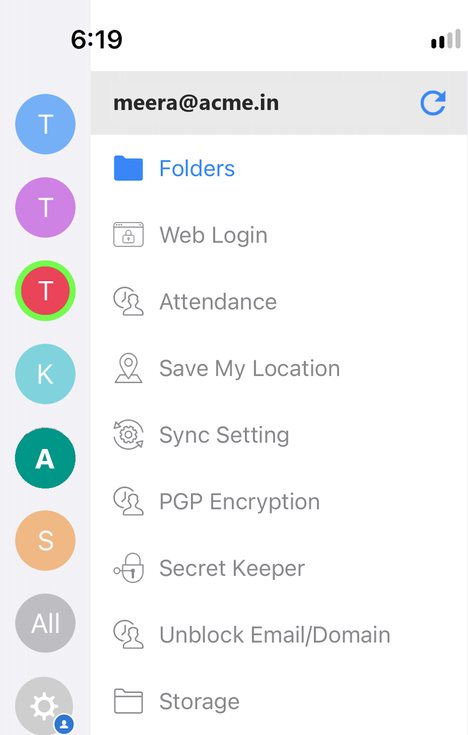
When to use it
Meera at acme.in installs XgenPlus on her iPhone before a site visit. She opens the menu, checks her Folders, and later uses Attendance to record her timings from the client's office.
What is in the menu
| Item | What it does |
|---|---|
| Account icons and All | Switch between your mail accounts, or see all of them together. |
| Folders | Your mail folders. |
| Web Login | Get a code to sign in to webmail on a computer. |
| Attendance | Record your office timings with your location. |
| Save My Location | Save and share the address of where you are. |
| Sync Setting | Choose how the app syncs your mail. |
| PGP Encryption | Manage keys for encrypted mail. |
| Secret Keeper | Keep private details locked behind a passkey. |
| Unblock Email/Domain | Remove senders you blocked earlier. |
| Storage | Your cloud files and folders. |
Good to know
- Get the iPhone app from the App Store. All XgenPlus apps are listed at xgenplus.com/download.html.
- The refresh icon next to your address checks for new mail.
Common questions
Does the app work on iPad too?
Yes. On iPad the mail list and the open mail show side by side.
Can I add more than one mail account?
Yes. Each account shows as a round icon on the left of the menu. Tap All to see them together.
Was this page helpful?
Updated 2026-10-29