

Record your attendance on iPhone
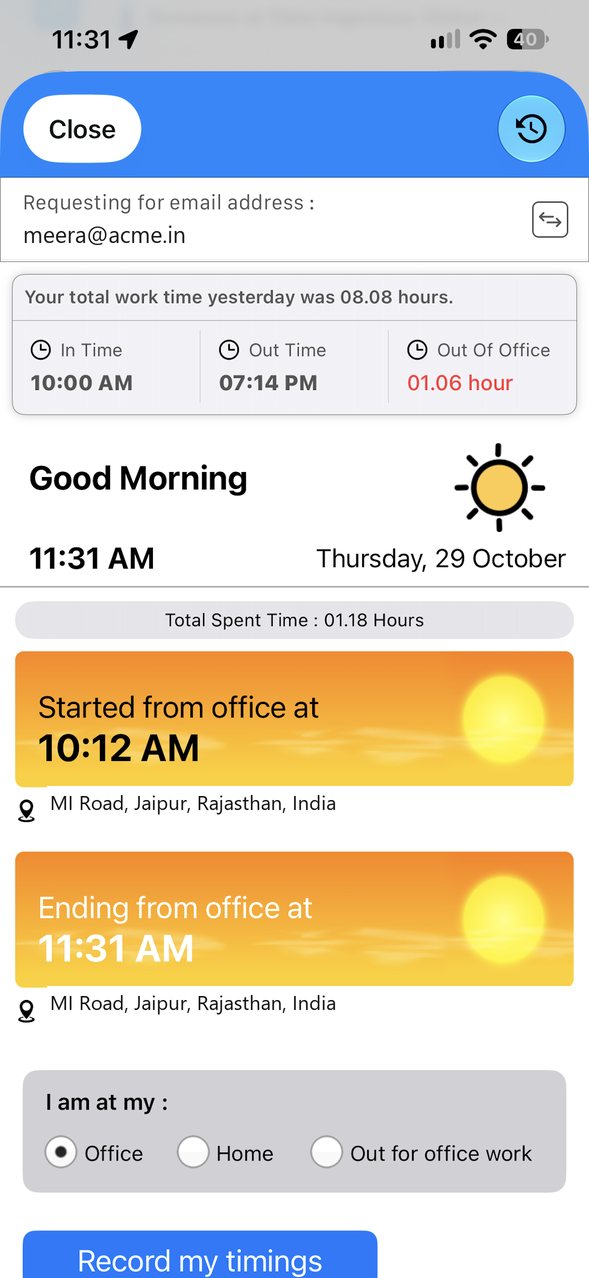
In the XgenPlus iPhone app, open the menu and tap Attendance. Under I am at my, choose Office, Home or Out for office work, then tap Record my timings. The screen shows when and where you started and ended, your Total Spent Time today, and yesterday's in time, out time and time out of office.
For: EveryoneAndroidiPhone
How to record your attendance on iPhone
- Open the menu and tap Attendance.
- Under I am at my, choose Office, Home or Out for office work.
- Tap Record my timings.
- Check the start or end time and location shown on the screen.
When to use it
Meera reaches her office at 10 am, opens Attendance on her iPhone, keeps Office selected and taps Record my timings. In the evening she does the same to record when she left.
What the screen shows
| Part | What it shows |
|---|---|
| Requesting for email address | The account you are recording attendance for. |
| Yesterday's summary | In Time, Out Time and Out Of Office time. |
| Total Spent Time | Time since you started today. |
| Started from office at / Ending from office at | Your times today, with the location of each. |
| History icon | Earlier days. |
Good to know
- Your organisation must use XgenPlus Attendance for this item to appear in your menu.
Common questions
Why does the app ask for my location?
Attendance records where you started and ended work. Allow location access for the XgenPlus app.
Where do I see earlier days?
Tap the history icon at the top right.
Was this page helpful?
Updated 2026-10-29