

Write a mail with AI Compose on iPhone
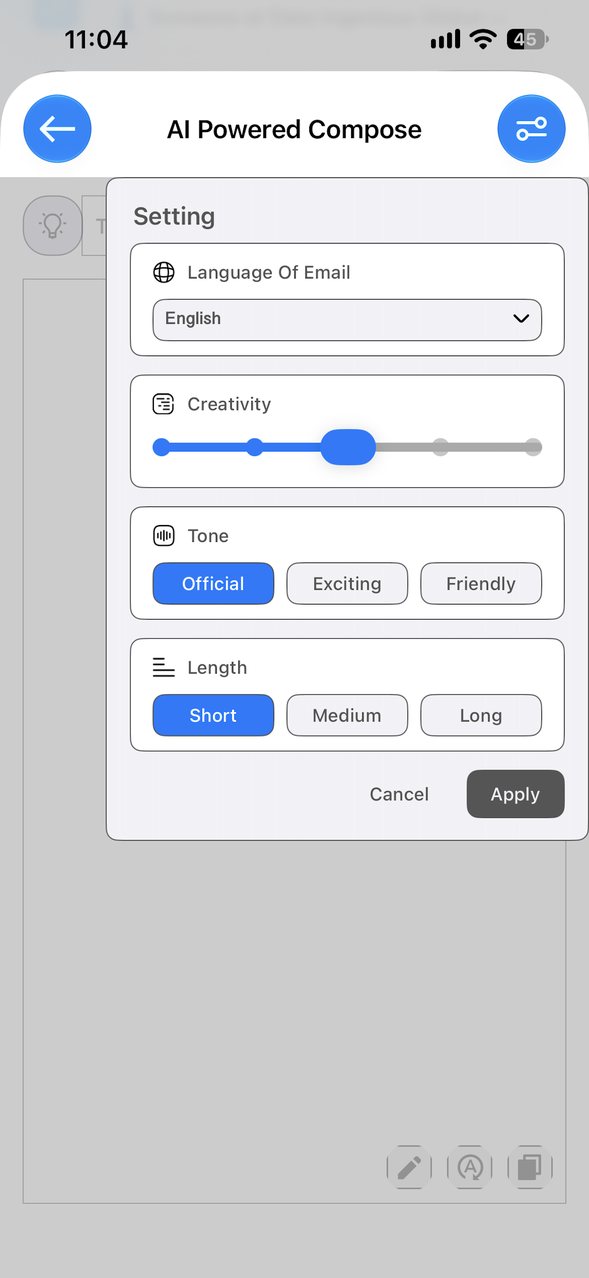
In the XgenPlus iPhone app, open AI Powered Compose and type the subject or purpose of your mail. Tap the settings icon at the top right to choose Language Of Email, Creativity, Tone (Official, Exciting or Friendly) and Length (Short, Medium or Long), then tap Apply. Read the draft before you use it.
For: EveryoneWebAndroidiPhoneTime-savingAI
How to write a mail with AI Compose on iPhone
- Open AI Powered Compose in the app.
- Type the subject or purpose of your mail.
- Tap the settings icon at the top right.
- Choose the language, creativity, tone and length, then tap Apply.
- Read the draft and use it in your mail.
When to use it
Rohit has to decline a vendor's offer politely. On his iPhone he types "decline the offer, thank them", picks Official and Short, and gets a ready draft he edits in a few seconds.
Options
| Option | What it does |
|---|---|
| Language Of Email | The language the draft is written in. |
| Creativity | Slide left for plain wording, right for more varied wording. |
| Tone | Official, Exciting or Friendly. |
| Length | Short, Medium or Long. |
Common questions
Should I send the draft as it is?
Read it first. AI Powered Compose gives you a suggestion that you should check and edit before sending.
Was this page helpful?
Updated 2026-10-29