

Mark your attendance on Android
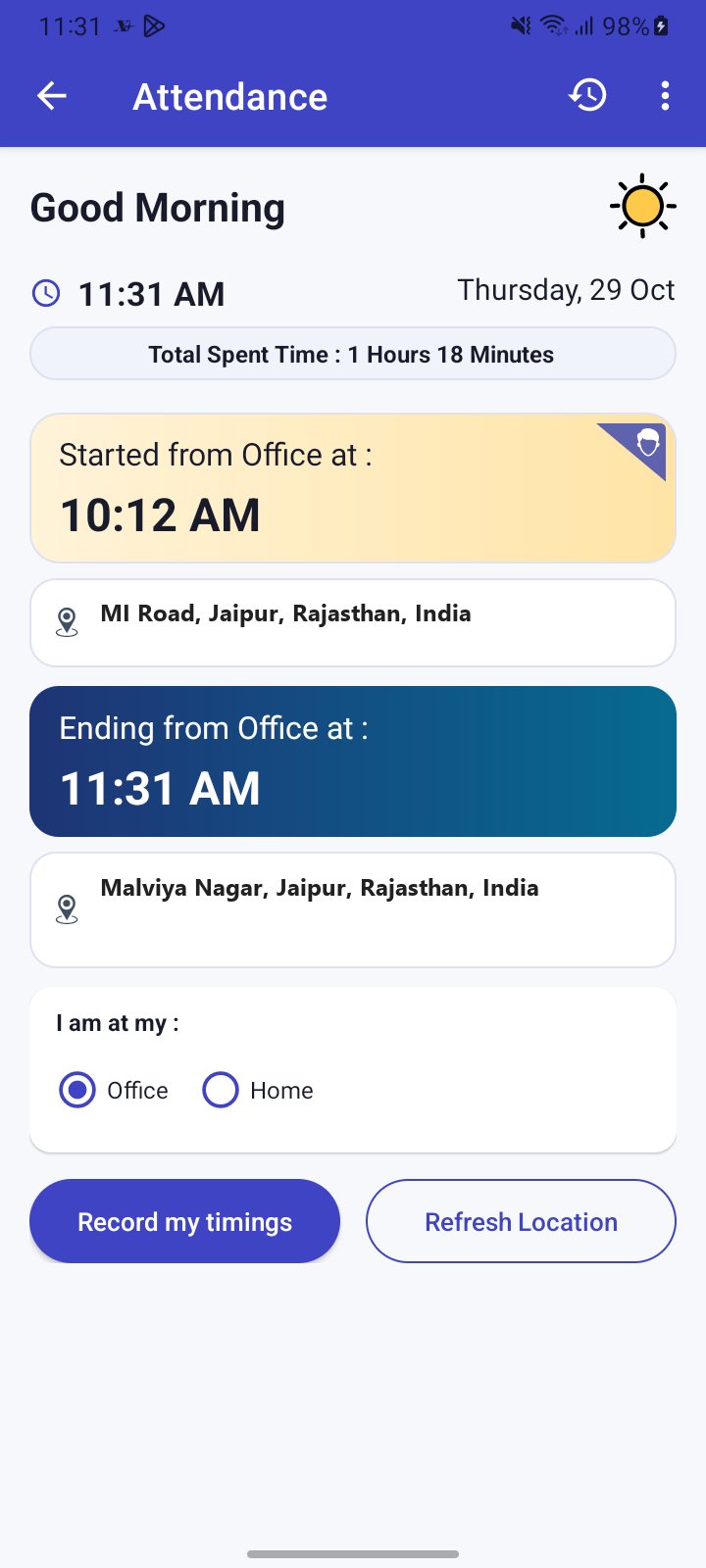
Open Attendance in the XgenPlus app and tap Yes to Are you joining work today. Choose Office, Home or Out for office work, then tap Mark my attendance. The app checks your location, then scans your face. In the evening, open Attendance and tap Record my timings the same way.
How to mark your attendance on android
Where: Menu › Attendance
- Open the menu and tap Attendance, or tap Mark attendance on the home-screen widget.
- On Are you joining work today? tap Yes.
- Under I am at my : choose Office, Home or Out for office work, and wait for your address to appear.
- Tap Mark my attendance. For Out for office work, type a reason and tap Submit.
- If the app asks whether this is your office or home address, tap Yes to confirm.
- Look into the circle on the face scanner. The mark is sent when your face matches.
- In the evening, open Attendance and tap Record my timings to end your day.
When to use it
Priya reaches the office at 9:05, opens Attendance, taps Yes, keeps Office selected and looks into the scanner. At 6:10 pm she taps Record my timings.
Options
| Option | What it does |
|---|---|
| Office | Checks you are near your office or branch. |
| Home | Checks you are near your saved home location. |
| Out for office work | Asks for a reason. Use it when you work away from the office. |
| Refresh Location | Reads your location again. |
Good to know
- Attendance appears only when your organisation has turned it on for you.
- You need internet, the Location permission, the phone's location switched on and the Camera permission.
- Keep the screen open while the app checks your location. If you leave it, the check is cancelled and your attendance is not marked.
- Hold the phone upright for the face scan. The scanner does not work in landscape.
- If the day is marked as leave, the end-of-day mark is not offered.
- After a mark, a Success dialog confirms it.
Common questions
What if my face is not recognised?
The scanner shows Face not recognized, waits a few seconds, then offers Try Again. After repeated failures you can mark attendance without face recognition, but your stored face is cleared and you must register it again.
Why does it say my location seems inaccurate?
You may be too far from the saved office or branch. Tap Refresh Location, move closer to your office and retry.
Why does a dialog ask me to change date and time settings?
Attendance needs your phone's Automatic date and time setting turned on. Tap Open setting and switch it on.