

Import mail from another account
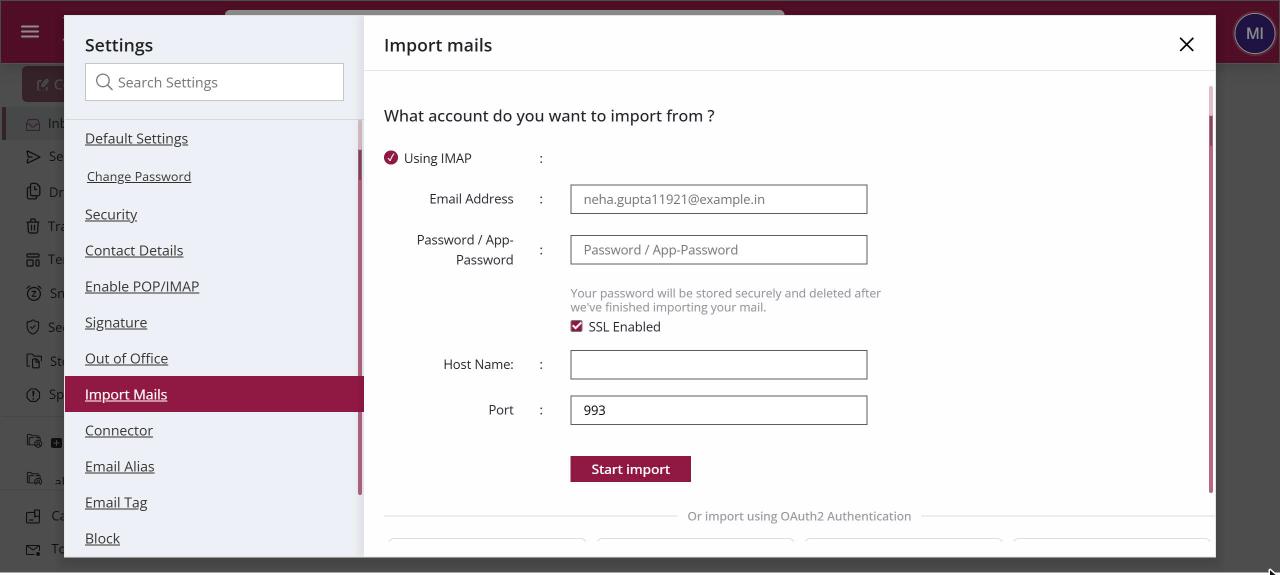
To import mail, open Settings › Import Mails. Either click Google, Microsoft, Yahoo or Zoho under Or import using OAuth2 Authentication and sign in, or enter the old account's address, password or app password and IMAP server under Using IMAP and click Start import. The import runs in the background, and you can check progress or cancel it.
How to import mail from another account
Where: Settings › Import Mails
- Click your profile picture, then Settings, and open Import Mails.
- To sign in with your provider, click Google, Microsoft, Yahoo or Zoho and allow access in the window that opens.
- Or, under Using IMAP, enter the old Email Address, its Password / App-Password, the IMAP Host Name and Port.
- If you used Using IMAP, click Start import.
- Come back to Import Mails later to see the progress, click Refresh, or Cancel the import.
When to use it
Rohit joins acme.in from a company that used Google Workspace. On his first day he opens Import Mails, clicks Google, signs in to his old account and lets it run. By the next morning his old mail is in his XgenPlus mailbox.
Options
| Option | What it does | Default |
|---|---|---|
| Google, Microsoft, Yahoo, Zoho | Signs in to the old account with the provider's own login page (OAuth2), so you don't type the old password into XgenPlus. | |
| Email Address | The address of the account you are importing from. | |
| Password / App-Password | The old account's password. If the provider uses two-step login, create an app password there and use it here. | |
| SSL Enabled | Connects to the old server securely. | On |
| Host Name | The old provider's IMAP server, for example imap.example.in. | |
| Port | The IMAP port. | 993 |
Good to know
- After you sign in with Google, Microsoft, Yahoo or Zoho and allow access, the import starts by itself.
- Any mail account that supports IMAP can be imported. Ask the old provider for the IMAP server name if you don't know it.
- The status panel shows a running indicator, the percentage done and the start time. Click Refresh to update it.
- Imported mail counts towards your mailbox storage. Check your space first if the old mailbox is large.
- Import copies mail once. To keep receiving mail that still arrives at the old address, set up a Connector.
- If Import Mails is missing from Settings, your administrator has hidden it.
Common questions
Do I have to stay logged in while mail is imported?
No. The import runs in the background. The time depends on the size of the mailbox and the limits of the old server, and can be up to 2 days. You can log out and check the progress later on the same screen.
Is my old password kept?
The screen says the password is stored securely and deleted after the import finishes. With the Google, Microsoft, Yahoo or Zoho buttons you sign in with the provider instead of typing a password here.
Can I import from my own XgenPlus address?
No. XgenPlus refuses to import an account into itself.