

Connect another mail account
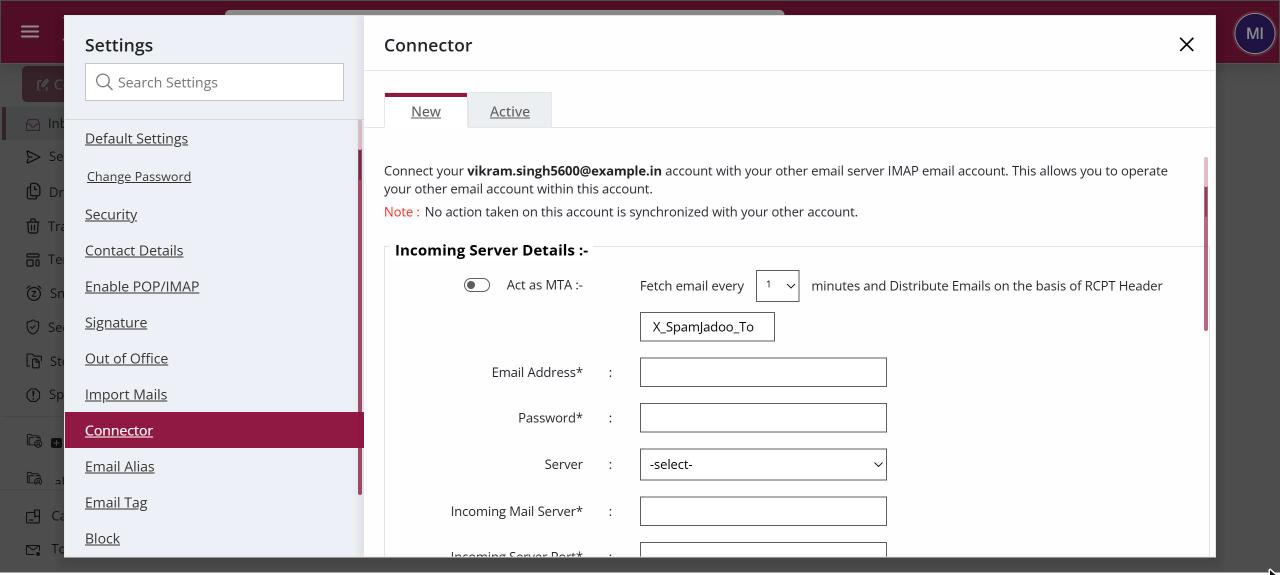
To connect another mail account, open Settings › Connector › New. Under incoming server details enter the account's Email Address, Password, Incoming Mail Server and port, click Verify, then Save. Add the outgoing (SMTP) details the same way if you also want to send through it. Check the connection on the Active tab.
How to connect another mail account
Where: Settings › Connector
- Click your profile picture, then Settings, and open Connector.
- On the New tab, fill in the incoming details, Email Address, Password, Server, Incoming Mail Server and port, and tick SSL if the server uses it.
- Make sure Enabled is ticked and click Verify. When the check passes, click Save.
- To send through the account as well, fill in the outgoing details for its SMTP server, then Verify and Save.
- Open the Active tab to see the connection, its status, and Edit or Delete it.
When to use it
Priya runs a small consultancy that moved to XgenPlus, but clients still write to her old address at an ISP. She connects that account with Connector, so their mail keeps reaching her in XgenPlus while she tells clients about her new address.
Options
| Option | What it does |
|---|---|
| Server Type / Server | Pick a preset for common providers, or enter a custom server. |
| Incoming Mail Server / Incoming Server Port / SSL | The other account's IMAP server, port and secure connection. |
| Outgoing Mail Server(SMTP) / Outgoing Server Port / SSL/TLS | The other account's SMTP server, port and secure connection, for sending. |
| Enabled | Turns the connection on or off without deleting it. |
| Verify | Tests the connection and sign-in before you save. |
| Act as MTA | Fetches mail from the account every 1, 5, 10 or 30 minutes and hands it out to each person by recipient. Useful when one shared mailbox receives mail for a whole office. |
Good to know
- Connector keeps an outside account working inside XgenPlus. To copy old mail across once, use Import Mails instead.
- If the other provider uses two-step login, create an app password on its side and use it here.
- Verify also works for accounts that only allow sign-in through Google or Microsoft.
- Act as MTA works for normal users.
- Remove the connection on the Active tab when you no longer need the old account.
Common questions
If I delete a mail in XgenPlus, is it deleted in the other account too?
No. Nothing you do in XgenPlus is synchronised back to the other account.
What does Verify check?
It tests that XgenPlus can reach the server and sign in with the details you gave, before you save them.
Why don't I see Connector in Settings?
Your administrator can hide this section. Ask them if you need it.