

Block or unblock senders and domains
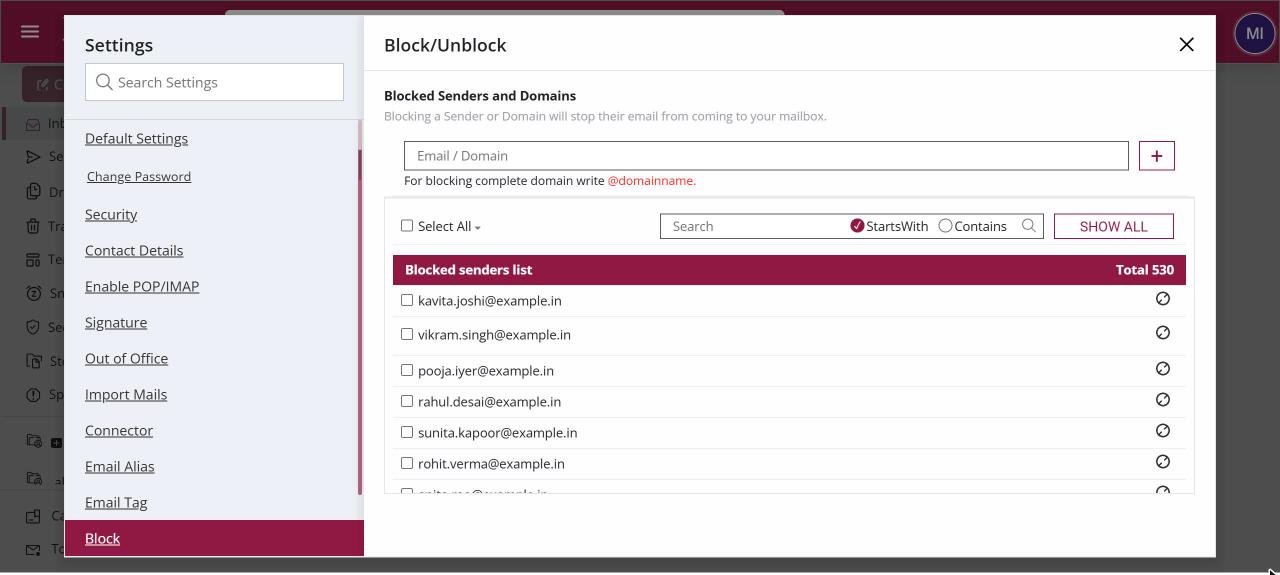
To block a sender, open Settings › Block, type the address, or @ followed by the domain to block a whole domain, and click Block. Mail from blocked senders no longer reaches your mailbox. To undo it, find the entry with Search Address and click Unblock. You cannot block your own address or domain.
For: EveryoneWebSecurity
How to block or unblock senders and domains
Where: Settings › Block
- Click your profile picture, then Settings, and open Block.
- Type an address such as rakesh@example.in, or a whole domain such as @spammy-offers.in.
- Click Block. The totals of blocked addresses and domains update.
- To remove an entry, find it with Search Address and click Unblock.
When to use it
The HR inbox at acme.in keeps getting unsolicited CVs from a recruitment portal. Anita blocks @cvblast-jobs.in once, and every address at that domain stops reaching her mailbox.
Options
| Option | What it does |
|---|---|
| Address box and Block | Adds one address, or a whole domain written as @domain.in. |
| Total Blocked Domain(s) / Total Blocked Address(s) | Running counts of your block list. |
| Search Address | Finds entries that Starts with or Contains your text. Show All lists everything again. |
| Unblock | Removes the entry so that mail from the sender arrives again. |
Good to know
- You can't block your own address or your own organisation's domain, and an address already on the list is not added twice.
- You can also block a sender straight from the mail list or from an open mail.
- To keep unknown senders out without blocking them one by one, use the Antispam setting to accept mail only from your address book.
Was this page helpful?
Updated 2026-10-28