

Find contacts and import a list
Open Contacts in XgenPlus CRM to see everyone with their email and open deals. Type in Search contacts to find a person, or select New contact to add one. To bring in a list, select Import, upload a CSV file, match the columns and check it. You can import up to 5,000 rows.
How to find contacts and import a list
Where: crm.xgenplus.com › Contacts › Import
- Open Contacts from the menu on the left.
- Select Import.
- On 1. Upload, drop your CSV file or choose a file. Select Download a sample file if you need the layout.
- On 2. Match columns, match each column in your file to the right field.
- On 3. Check and import, review the list and confirm the import.
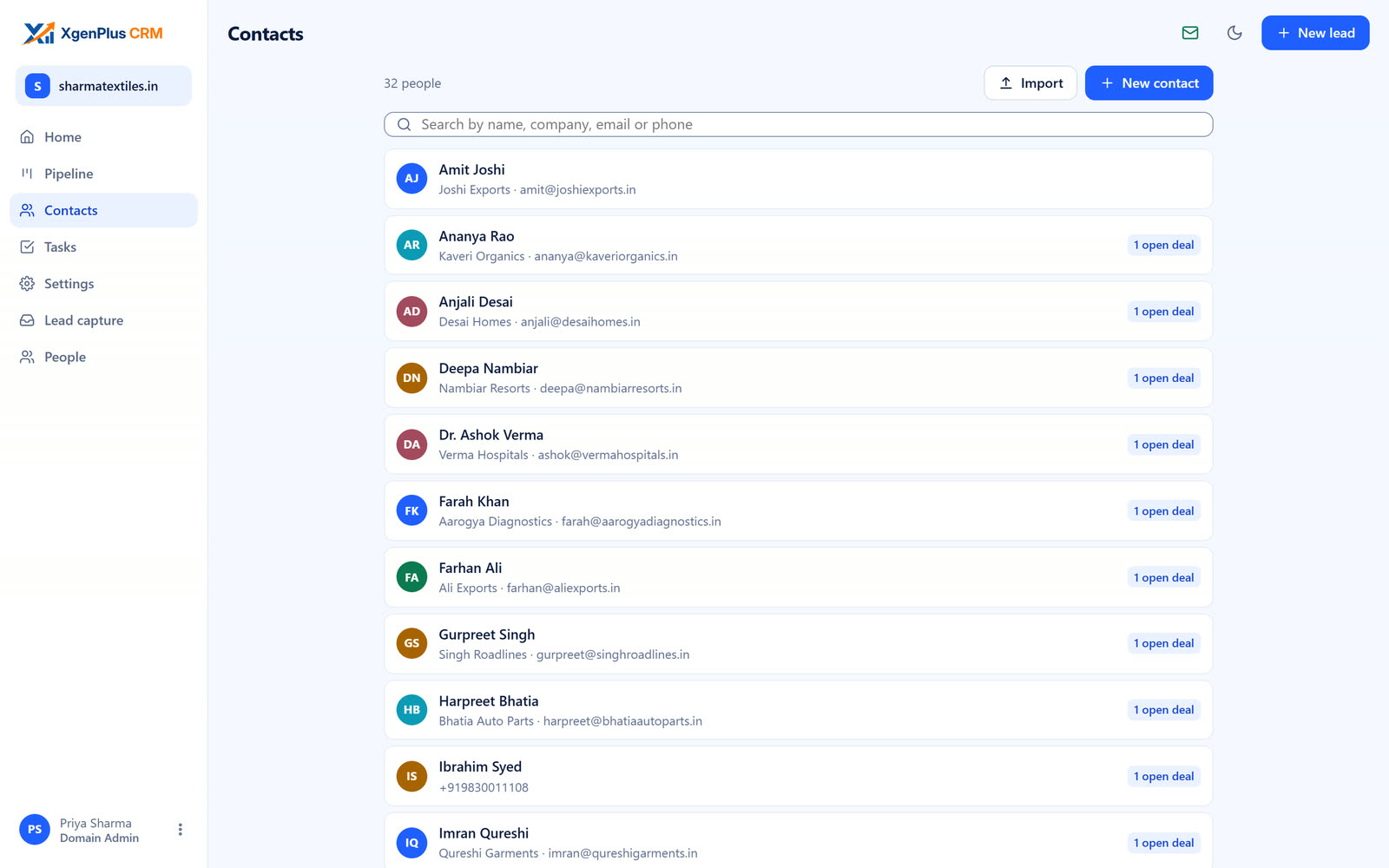
What the list shows
The top of Contacts says how many people you have. Each contact shows a name, an email or phone number, and "1 open deal" when they have one.
Good to know
- New contact adds one person at a time. For many, use Import.
- Your lead forms add people to the CRM by themselves, so you only need to import an existing list once.
Common questions
What kind of file can I import?
A CSV file. Exports from Excel, Google Sheets, Tally and other CRMs work.
How many rows can I import?
Up to 5,000 rows at a time.
What columns does the sample file have?
Name, Phone, Email and Company. Select Download a sample file in the import window.
Can everyone import contacts?
It depends on the person's role. Sales Manager, Team Lead and Sales Rep can import contacts from a file. Field Agent and Viewer cannot.
