

Open a deal and see everything about it
On the Pipeline, select a deal card to open its panel. There you change the Stage and Expected close, see the Contact, Owner and Source, read the emails under MAIL, set a NEXT STEP and save notes. The green WhatsApp button opens the chat in WhatsApp, and Call dials the contact.
For: EveryoneWeb
How to open a deal and see everything about it
Where: crm.xgenplus.com › Pipeline › a deal card
- Open Pipeline and select a deal card.
- Change Stage or set Expected close if they have moved on.
- Check the Contact, Owner and Source fields.
- Read the emails with this contact under MAIL.
- Type what happens next in NEXT STEP and select Add.
- Write what the customer said in the Note box and select Save note.
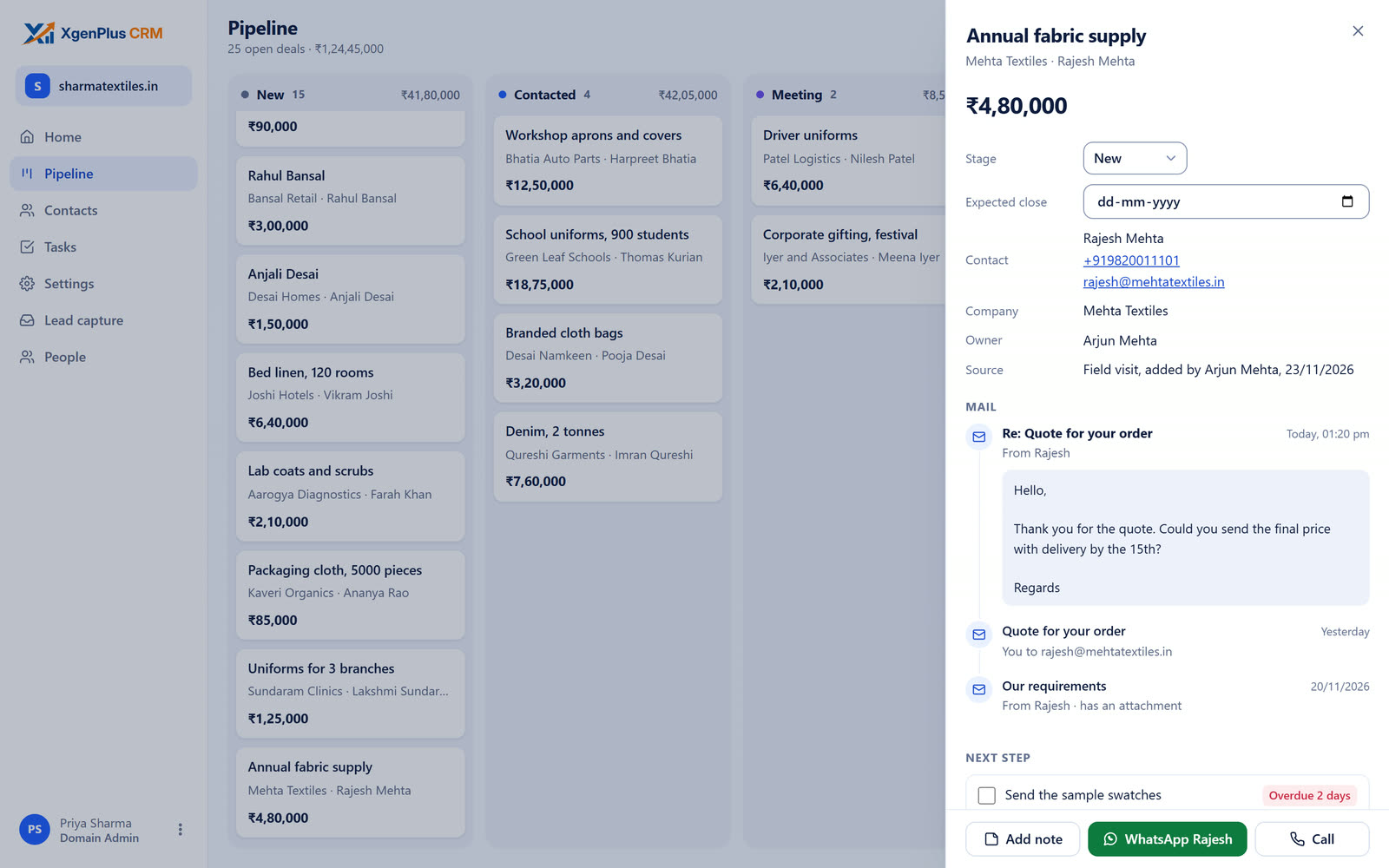
What is on the panel
- The deal name and its value. Select the name or the value to edit it.
- Stage and Expected close.
- Contact, with phone and email you can select, plus Owner and Source.
- MAIL, the emails with this contact.
- NEXT STEP and the Note box.
- TIMELINE, the history of the deal.
- At the bottom: Add note, a green WhatsApp button with the contact's name, and Call.
Good to know
- The WhatsApp button only opens the chat in WhatsApp. Nothing is sent from the CRM.
- The CRM does not write or send emails from a deal. You read them under MAIL and reply in your mail.
Common questions
Can I send a WhatsApp message from the CRM?
No. The green WhatsApp button opens the chat in WhatsApp, and you write the message there.
Why does MAIL say there are no emails?
MAIL shows emails with this contact from the last 6 months, and only when you have connected your mailbox.
Where do I see what happened to the deal?
The TIMELINE lists each change with its time, such as moving to a new stage or who added the lead.
Was this page helpful?
Updated 2026-11-29
