

Set up XgenPlus CRM for the first time
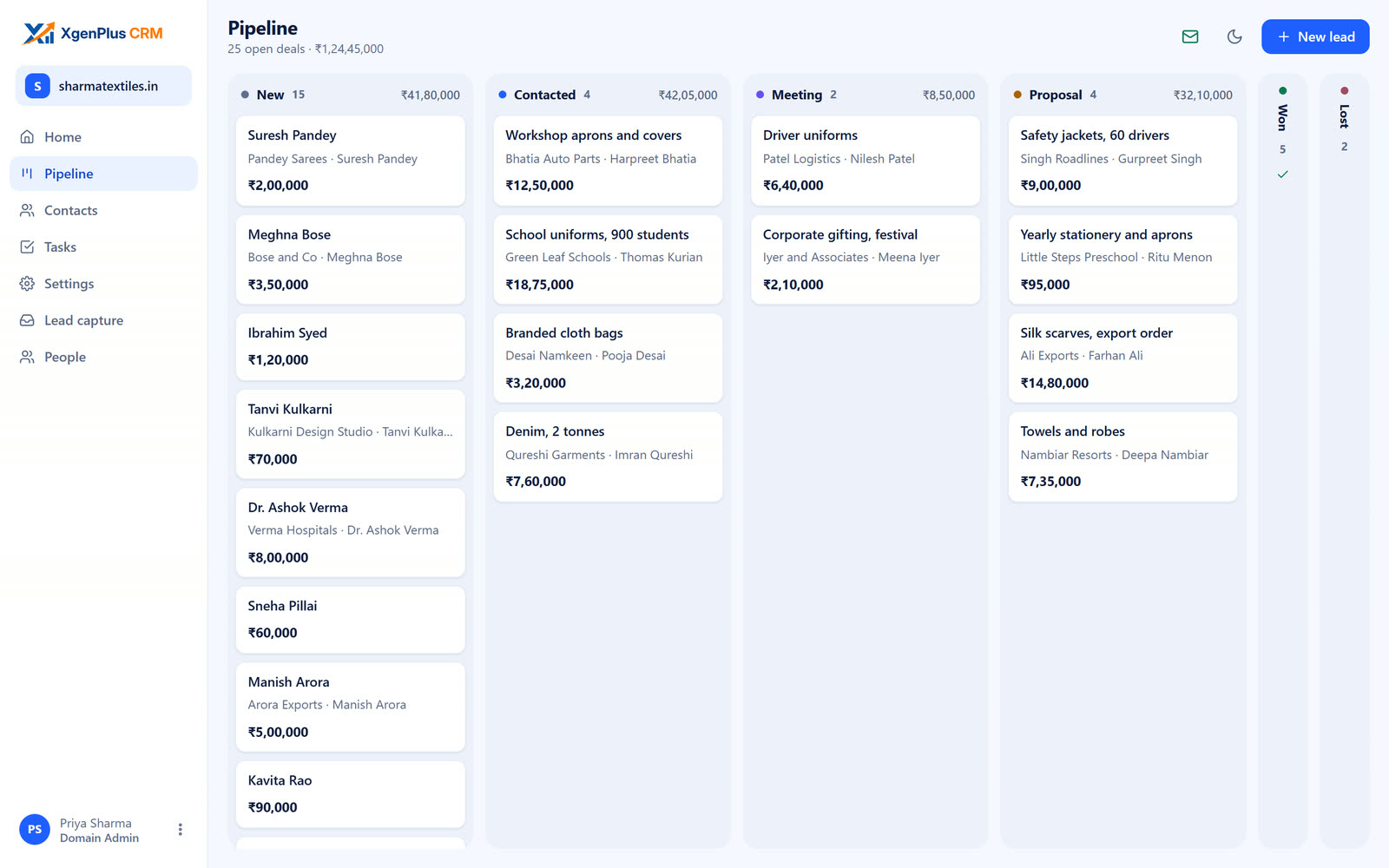
After you sign in as Domain Admin, XgenPlus CRM opens the Pipeline with a welcome card and three tiles: First lead added, Mailbox connected and Bring your list. Set your region in Settings, open Lead capture to get leads in, then use Tell your team in People. Connecting your mailbox is optional.
How to set up XgenPlus CRM for the first time
Where: crm.xgenplus.com › Pipeline
- Sign in to XgenPlus CRM as Domain Admin. The Pipeline opens with the welcome card.
- Add your first lead with New lead, or choose Bring your list to import contacts from a spreadsheet.
- Open Settings and set your language, time zone, currency and date format under Region and language, then select Save settings.
- Open Lead capture and follow the three steps to design your form and share its link.
- Open People and select Tell your team to email your colleagues.
- Optional: select the mailbox icon at the top right and choose Connect your mailbox.
The welcome card
The first time you open Pipeline, a card says your pipeline is ready. Its three tiles are a short checklist:
- First lead added: add a lead by hand or let one arrive from your form.
- Mailbox connected: link your mailbox so emails show inside deals.
- Bring your list: import contacts from a spreadsheet.
Good to know
- You can do these in any order, and come back to them later.
- Region settings decide how amounts, dates and "today" look for everyone, so set them before your team starts.
- Roles and teams are set in People.
Common questions
Can I hide the welcome card?
Yes. Select Hide on the card. The same card says everyone at your domain can sign in with their own app code, and that you choose their roles and teams in People.
Do I have to connect my mailbox?
No. It is optional. Connect it if you want the emails with a customer to show inside their deal.
Can other people change these settings?
Only the Domain Admin can change the region settings and set up lead capture.
