

Set next steps and follow-ups
Open a deal and type a NEXT STEP, then choose Today, Tomorrow, In 3 days or Next week and select Add. Open Tasks in XgenPlus CRM to see your follow-ups grouped as overdue, today, coming up and no date. Switch between Mine and Everyone at the top.
How to set next steps and follow-ups
Where: crm.xgenplus.com › Tasks
- Open a deal from the Pipeline.
- Type the action in NEXT STEP, for example the call you must make.
- Choose a date chip: Today, Tomorrow, In 3 days or Next week.
- Select Add.
- Open Tasks from the menu on the left to see all your follow-ups.
- Select Everyone to see the whole team's tasks.
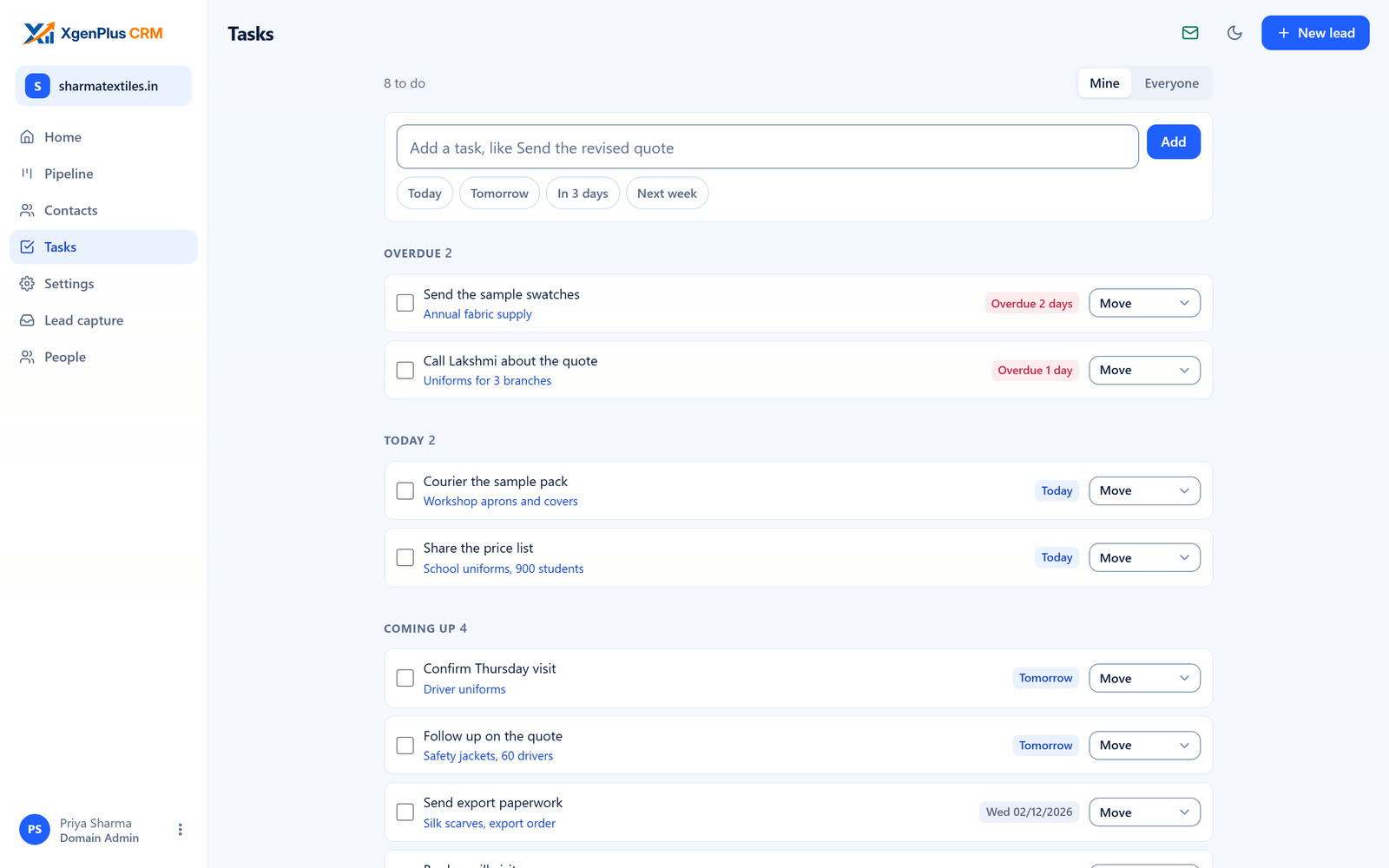
How Tasks is arranged
The top of Tasks says how many you have to do. Below the add box your tasks are grouped as overdue, today, coming up and no date. Each task shows the deal it belongs to.
Needs attention on Home
Home also has a Needs attention list. It shows next steps that are overdue, next steps due today, deals due to close within a week and open deals with no change for 7 days.
Good to know
- Overdue tasks show how many days late they are.
- Quick date chips mean you rarely need a calendar.
Common questions
Can I add a task that is not tied to a deal?
Yes. On Tasks, type it in the add box, pick a date chip and select Add. You can also add tasks from a deal or a contact.
How do I see my team's tasks?
Select Everyone at the top of Tasks. Mine shows only yours.
Where do overdue follow-ups show up besides Tasks?
On Home, under Needs attention, with the count of next steps that are overdue and those due today.
