

Move, copy or delete contacts
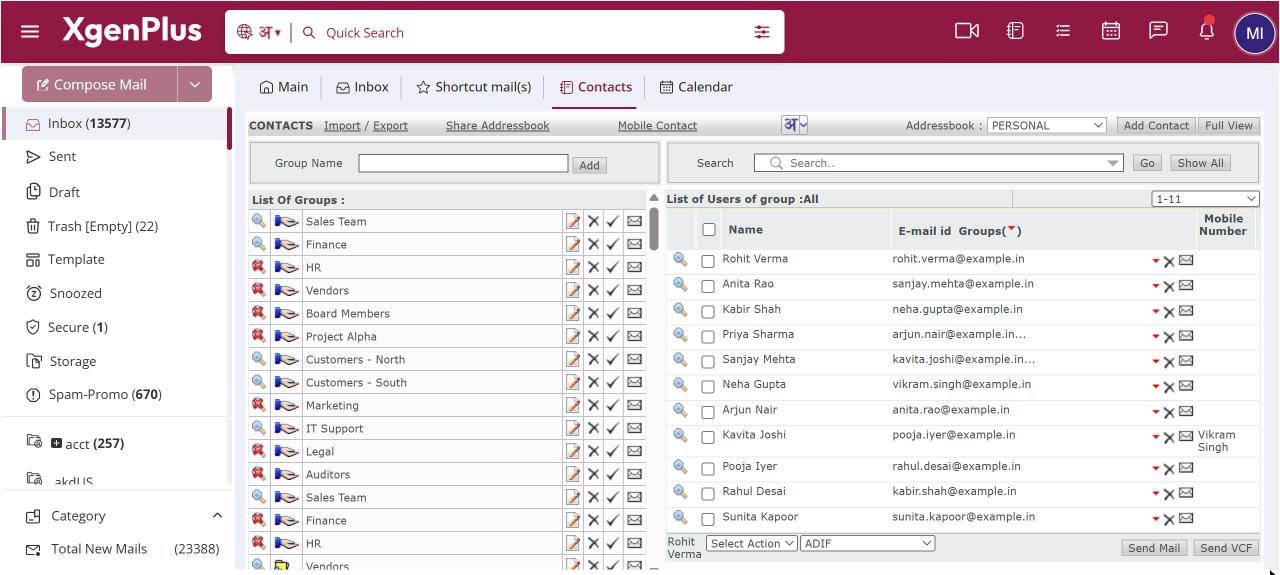
To act on several contacts, open Contacts, click a group and tick the contacts. Choose move to, copy to or remove in the action list, pick the target group and click Go. To delete, choose whether to delete from this group only or from all groups. Use Full View to block or unblock addresses.
For: EveryoneWebTime-saving
How to move, copy or delete contacts
- Open Contacts and click a group under List Of Groups.
- Tick the contacts, or tick the box at the top to select all on the page.
- Choose move to, copy to or remove and pick the target group.
- Click Go.
- To delete, choose ThisGroup or AllGroups when XgenPlus asks.
When to use it
After a reorganisation at acme.in, Meera moves 25 contacts from OPS-NORTH to OPS-CENTRAL in one go and blocks the address of a vendor who has left.
Options
| Action | What it does |
|---|---|
| move to | Moves the contacts to another group. |
| copy to | Adds them to another group as well. |
| remove | Takes them out of this group only. |
| Delete, ThisGroup | Deletes them from this group. |
| Delete, AllGroups | Deletes them from every group. |
| Block, Unblock | In Full View, stops or allows group mail and update requests to the address. |
Good to know
- Click the groups icon on a contact to see every group it belongs to.
- Click the mail icon on a contact to start a mail to that person.
- Click a column heading to sort the list, and use the page list to move between pages.
Common questions
What happens when I block a contact?
The address is left out when you mail the group or send an update request. You can unblock it from Full View.
Was this page helpful?
Updated 2026-10-28