

Add or edit a contact
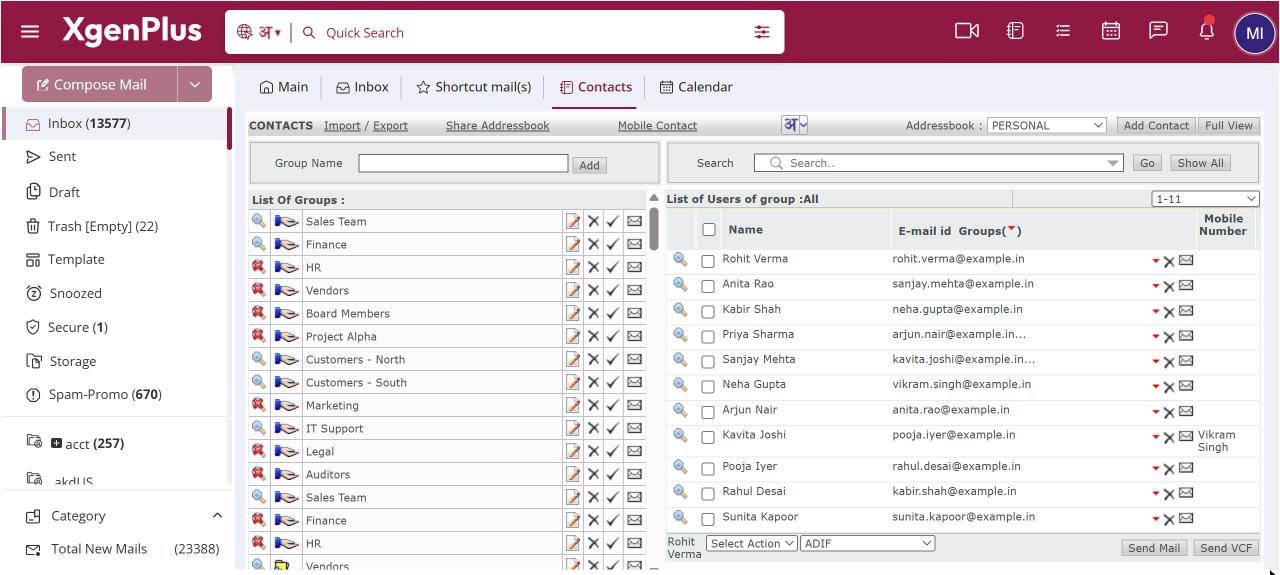
To add a contact, open Contacts and click Add Contact. Fill in the General tab with the name, email address, phone numbers and company, and choose groups under Select Group(s). Use the Detail tab for the birthday, anniversary and other details. Click Save. To edit, click the contact, change the fields and save.
For: EveryoneWeb
How to add or edit a contact
- Open Contacts and click Add Contact.
- On the General tab, enter the name, email address, phone numbers, company and address.
- Choose one or more groups under Select Group(s).
- Optionally open the Detail tab for department, birthday, anniversary and more.
- Click Save.
When to use it
After a trade fair, Anita in purchasing adds a supplier's sales head with mobile number, company and anniversary date, and files the contact under both SUPPLIERS and TRADE-FAIR-2026.
Options
| Tab | Fields |
|---|---|
| General | Title, first, middle and last name, company, job title, home, work and mobile phone, email address, alternate and other email, display name, home and work address, comments (200 characters). |
| Detail | Department, profession, manager, assistant, IM address, nickname, spouse name, Birth Date, Anniversary, web address. |
Good to know
- A Business Card preview on the form shows how the contact looks as you type.
- You can type names in Indian languages using the language box on the form.
- An address that belongs to a mailing list cannot be saved as a contact.
Common questions
Why does it say the email ID already exists?
A contact with that address is already in this address book. Search for it and edit the existing contact instead.
Why can't I add more contacts?
Your administrator may have set a limit on how many contacts you can store. You see a message when you reach it.
Was this page helpful?
Updated 2026-10-28