

View calendars shared with you
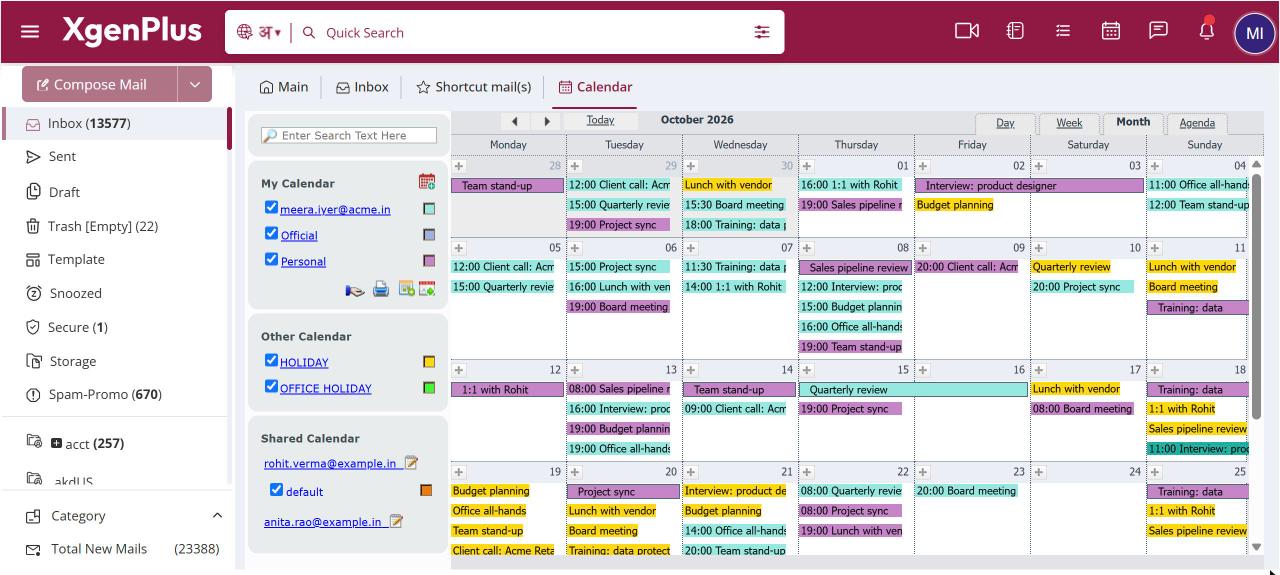
To see a shared calendar, open Calendar, expand Shared Calendar in the left pane and click the owner's name. Tick a calendar to show its events on your own view and click its swatch to give it a colour. To remove it, right-click it and choose Unsubscribe, or Unsubscribe All for everything from that person.
For: EveryoneWeb
How to view calendars shared with you
- Open Calendar from the top bar.
- In the left pane, expand Shared Calendar and click the owner's name.
- Tick a calendar to show its events. Untick it to hide them.
- Click the colour swatch to choose a colour for it in your view.
- To remove it, right-click the calendar and choose Unsubscribe or Unsubscribe All.
When to use it
Rohit leads a project at example.in. Three engineers have shared their calendars with him, so he ticks all three and finds a free slot for the design review.
Good to know
- Shared calendars are grouped by owner.
- If nobody has shared a calendar with you, the list says No calendar shared with you.
- The colour you choose applies only to your own view. The owner's colours do not change.
Common questions
Can I add events to a calendar someone shared with me?
Only if the owner gave you Make changes to calendar. With view permission you can see the events but not change them.
Was this page helpful?
Updated 2026-10-28