

Use the account menu
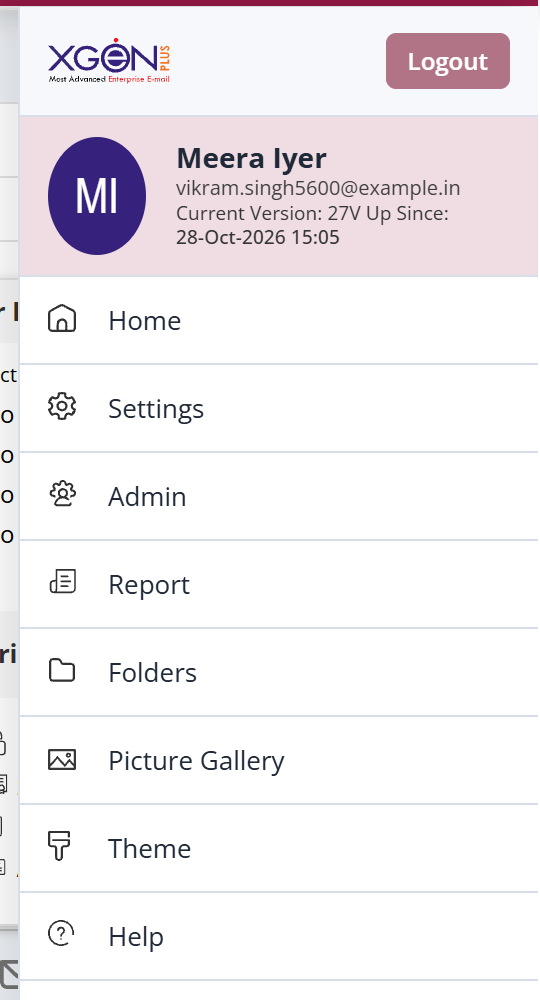
Click your picture or name at the top right of the mailbox to open the account menu. It shows your role and links to Home, Settings, Folders, Filters, Picture Gallery, theme colours, dark mode, Help and Logout. Administrators also see Admin or Report, which open the admin console without logging in again.
For: Everyone, Domain admin, Server adminWeb
How to use the account menu
- Click your picture or name at the top right.
- Choose an item, for example Settings or Home.
- To change colours, click one of the theme swatches.
- To sign out, click Logout.
When to use it
Sanjay is the domain admin at acme.in. He clicks his picture and chooses Admin to add a new user, without logging in to the admin console separately.
Menu items
| Item | Who sees it | What it does |
|---|---|---|
| Home | Everyone | Opens your Home page with widgets. |
| Settings | Everyone, unless hidden by the admin | Opens your mail settings. |
| Admin | Server, domain, support and group administrators | Opens the admin console. |
| Report | Server and billing administrators | Opens reports. |
| Assignments | Assignment users | Opens Assignments. |
| Folders, Filters, Picture Gallery | Everyone | Open your folders, filters and picture gallery. |
| Theme | Everyone | Purple, blue, maroon or green. |
| Switch to dark mode | When enabled | Turns dark mode on or off. |
| Help | Everyone | Replays the mailbox tour. |
| Logout | Everyone | Signs you out. Single sign-on users see Back To SSO too. |
Common questions
Why is Settings missing from my menu?
Your administrator can hide sections of Settings. If every section is hidden, the Settings item is not shown.
Why don't I see Switch to dark mode?
Dark mode appears only when it is enabled for your organisation.
Was this page helpful?
Updated 2026-10-28