

Turn on POP or IMAP access
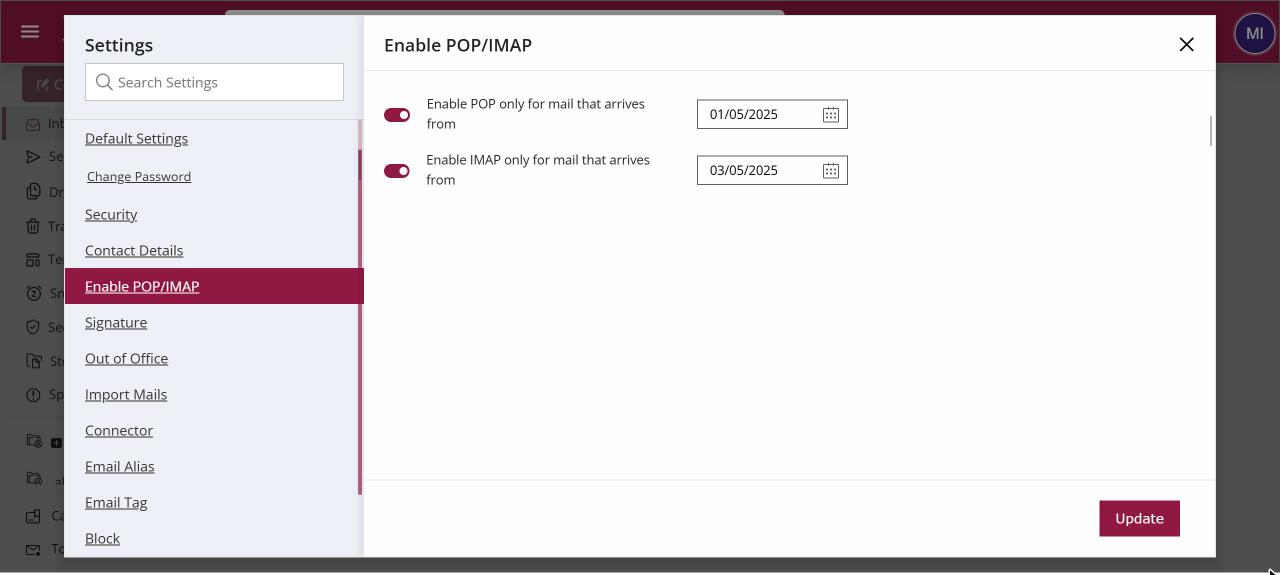
To let a mail app reach your mailbox, open Settings › Enable POP/IMAP, turn on IMAP, POP or both, and pick the date from which mail should be available. Click Update. Only mail that arrived on or after that date shows in the app, so a new laptop does not download years of old mail.
For: EveryoneWebSecurity● Unique to XgenPlus
How to turn on pop or imap access
Where: Settings › Enable POP/IMAP
- Click your profile picture, choose Settings and open Enable POP/IMAP.
- Turn on "Enable IMAP only for mail that arrives from" and pick a date, or do the same for POP.
- Click Update.
- Set up your mail app with the IMAP or POP server settings.
When to use it
Vivek sets up Thunderbird on a new laptop. He turns on IMAP only for mail from 1 January 2026, so the laptop does not download ten years of mail.
Options
| Option | What it does |
|---|---|
| Enable IMAP only for mail that arrives from | Lets IMAP apps see mail from the chosen date. Folders stay in step with webmail. |
| Enable POP only for mail that arrives from | Lets POP apps download mail from the chosen date. |
Good to know
- Webmail always shows all your mail. The date only affects mail apps.
- Turn IMAP or POP off again when you stop using an app.
Common questions
Why can't I see my older mail in Outlook?
Mail from before the start date you chose is not offered to mail apps. Pick an earlier date in Enable POP/IMAP and click Update.
The Enable POP/IMAP section is missing. Why?
Your administrator has not allowed POP or IMAP for your account, or has hidden this section. Ask them.
For admins
Administrators control this feature for the whole domain:
Was this page helpful?
Updated 2026-10-28