

Encrypt or sign a mail with PGP
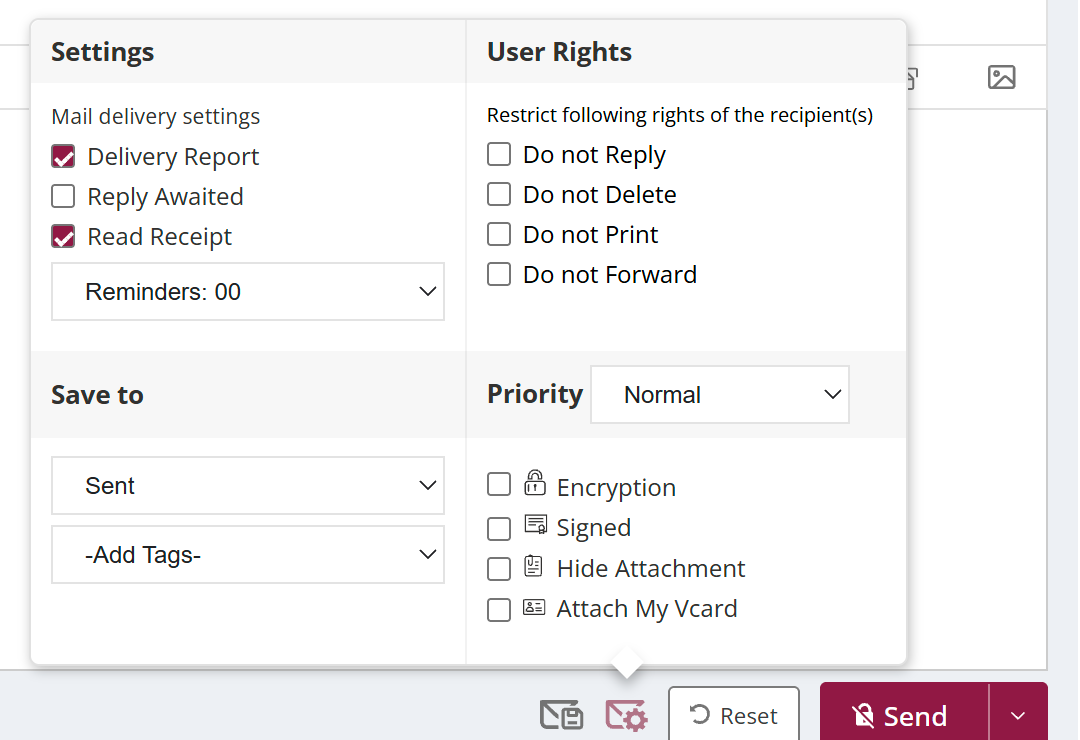
To send a PGP-protected mail, first create your keys in Settings. Then open Classic compose and tick Encryption to encrypt, Signed to sign, or both. They are two separate checkboxes. When you click Send with signing on, enter your passphrase and click Verify. Every recipient needs a PGP public key to receive encrypted mail.
How to encrypt or sign a mail with pgp
- Create your PGP keys in Settings.
- Click the arrow next to Compose Mail, turn on Classic and click Compose Mail.
- Tick Encryption, Signed or both. They are separate checkboxes.
- Click Send.
- If you are signing, enter your passphrase and click Verify.
When to use it
A defence supplier's engineer sends drawings to the client's engineer encrypted with PGP and signed. Only the client can open them, and the client can check they came unaltered from the supplier.
Options
| Option | What it does |
|---|---|
| Encryption | Encrypts the mail with each recipient's public key. Only they can read it. |
| Signed | Signs the mail with your private key after you enter your passphrase. Recipients can check it came from you unchanged. |
Good to know
- PGP is in Classic compose. To switch, click the arrow next to Compose Mail and turn on Classic.
- If your own key is missing, you cannot send encrypted mail. Create it in Settings first.
- Encrypted mail cannot be saved in another user's Sent folder.
Common questions
Why does it say a recipient has no public key?
XgenPlus needs each recipient's PGP public key to encrypt for them. Remove that recipient from the mail.
Can I encrypt mail to a group?
No. Encrypted mail must go to individual recipients, not to a contact group or a whole domain.
Can I use PGP and user rights together?
No. A mail can have rights or PGP encryption and signing, not both.