

Connect your mailbox to XgenPlus CRM
Select the mailbox icon at the top right of XgenPlus CRM and choose Connect your mailbox. The CRM then reads your emails with each contact and shows them inside their deal under MAIL. It never deletes or moves your mail. Connecting is optional and you can Disconnect at any time.
How to connect your mailbox to XgenPlus CRM
Where: crm.xgenplus.com › mailbox icon › Connect your mailbox
- Select the mailbox icon at the top right.
- Choose Connect your mailbox.
- Check what the CRM is allowed to do with your mail, and allow it.
- Open a deal and look under MAIL for your emails with that contact.
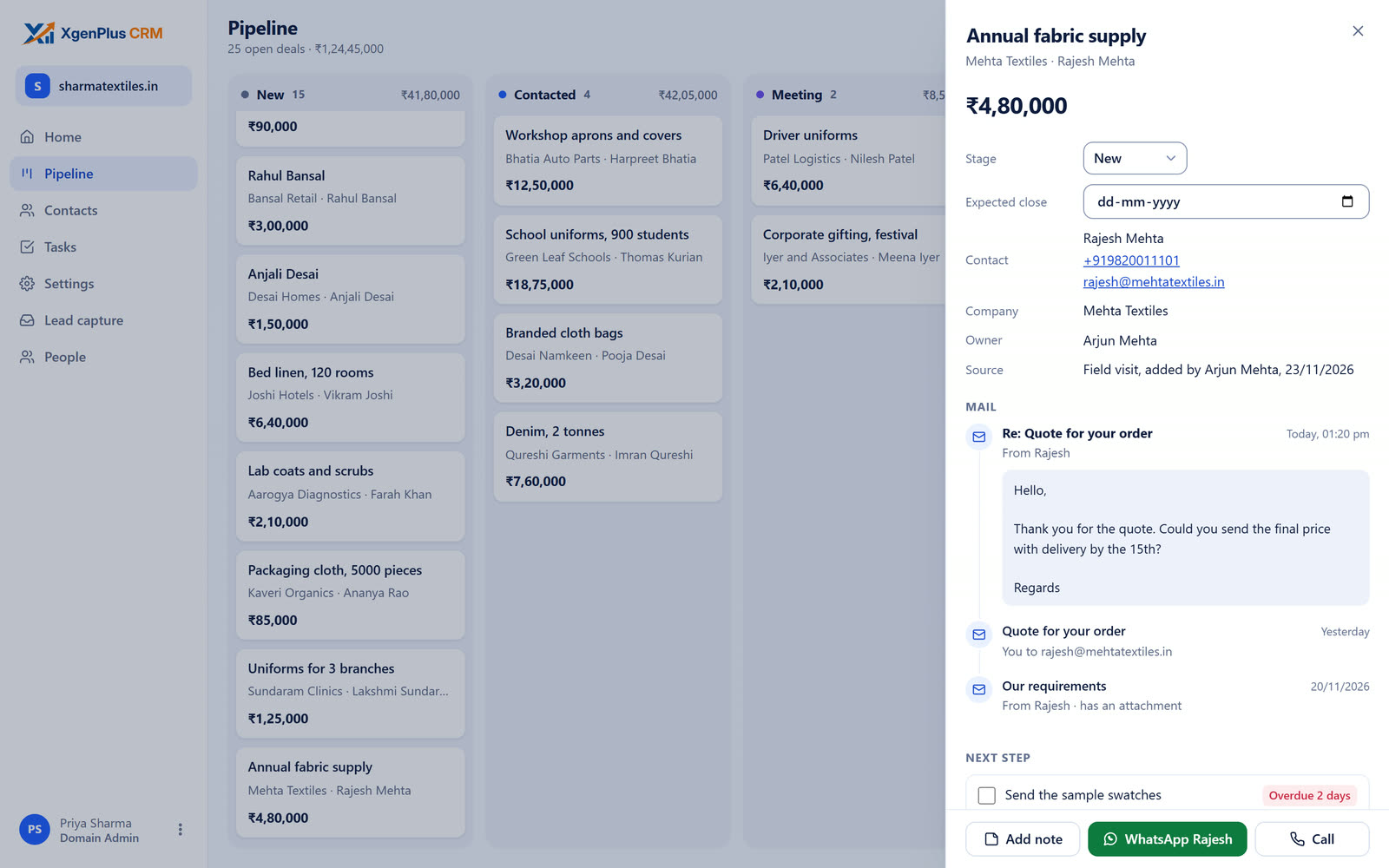
What you see after connecting
The mailbox icon shows Mailbox connected. Open a deal and its MAIL section lists your emails with that contact from the last 6 months. If there are none, it says so.
Good to know
- The connection is yours. It is your mailbox that you connect.
- You choose what the CRM may do with your mailbox. The CRM never deletes or moves mail, so you can leave those permissions off.
- The CRM sends mail only when a Domain Admin uses Tell your team.
Common questions
Do I have to connect my mailbox?
No. It is optional. Without it, the CRM works but deals do not show emails.
Will the CRM delete or move my mail?
No. It reads your emails with each contact and never deletes or moves anything.
Can I switch it off?
Yes. Open the mailbox icon and select Disconnect at any time.
Can I write emails to customers from a deal?
No. The CRM shows your emails under MAIL, but you write and send them from your mail as usual.
