

Add a lead from your phone
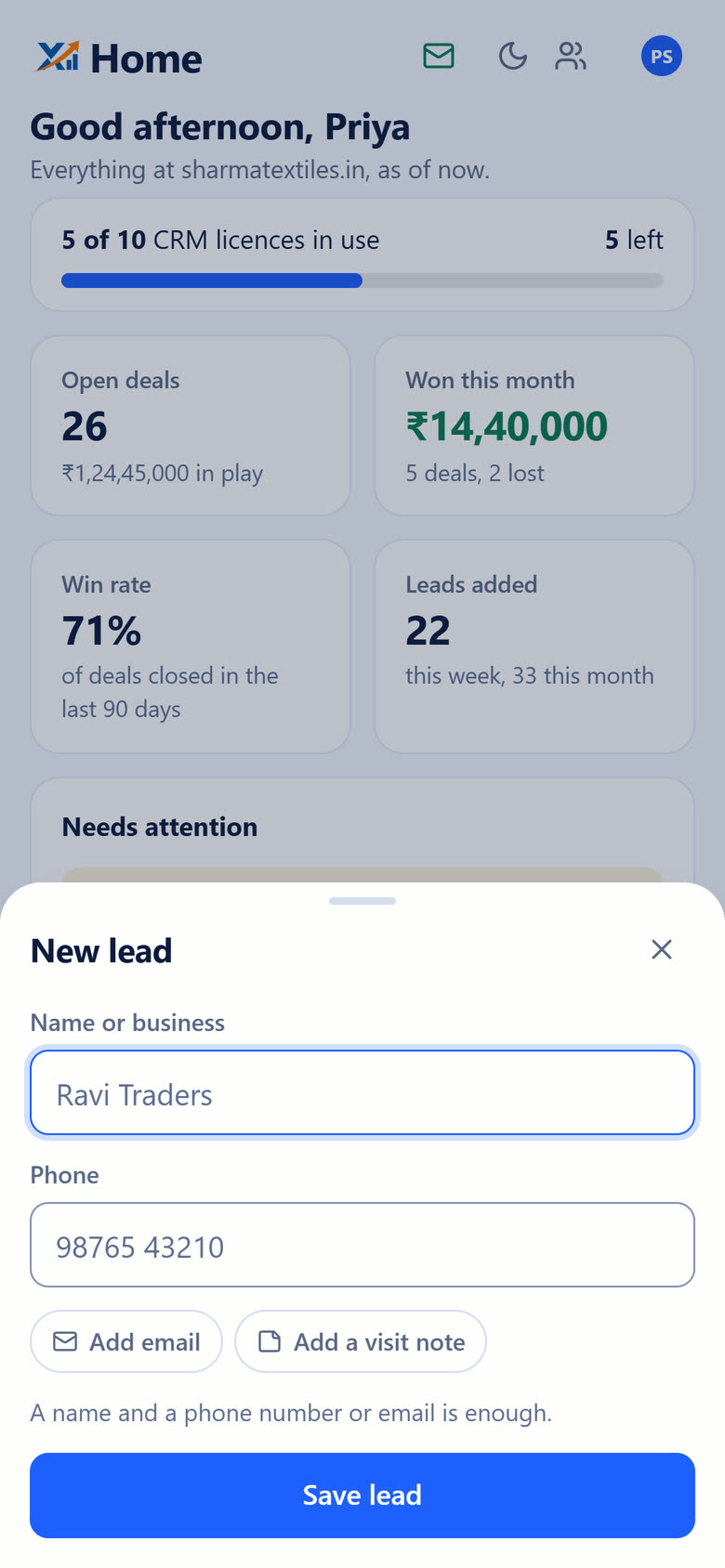
To add a lead on your phone, open XgenPlus CRM in the browser and tap the plus button. In the New lead sheet type a name or business and a phone number, then tap Save lead. After saving, tap to call or open WhatsApp. Without a signal, the lead is kept and syncs by itself later.
For: EveryoneWeb
How to add a lead from your phone
Where: Your phone's browser › crm.xgenplus.com › the plus button
- Open XgenPlus CRM in your phone's browser and tap the plus button.
- In the New lead sheet, type the Name or business and the Phone.
- Tap Add email or Add a visit note if you want to add more.
- Tap Save lead.
- Tap to call the person, or open WhatsApp.
Good to know
- Add email and Add a visit note are optional.
- The new lead appears in New on the Pipeline.
- CRM runs in the phone browser. There is no separate app.
Common questions
What do I have to type?
A name and a phone number or email is enough.
What if I have no signal?
The lead is kept on your phone and syncs by itself when you are back online.
What if the person is already in the CRM?
A duplicate guard warns you that the person is already there.
Does WhatsApp send a message for me?
No. The button opens the chat in WhatsApp, where you write the message.
Was this page helpful?
Updated 2026-11-29
