

Put the lead form on your website
To show your lead form on your website, open Lead capture in XgenPlus CRM, stay on the Share tab, choose Put it on your website and select Copy code. Paste the code where the form should appear on your page. It adjusts to phones.
For: adminWeb
How to put the lead form on your website
Where: crm.xgenplus.com › Lead capture › Share › Put it on your website
- Open Lead capture from the menu on the left.
- Stay on the Share tab and choose Put it on your website.
- Select Copy code.
- Paste the code into your web page, in the spot where the form should appear.
- Open your page and send a test lead. It shows on your Pipeline within seconds.
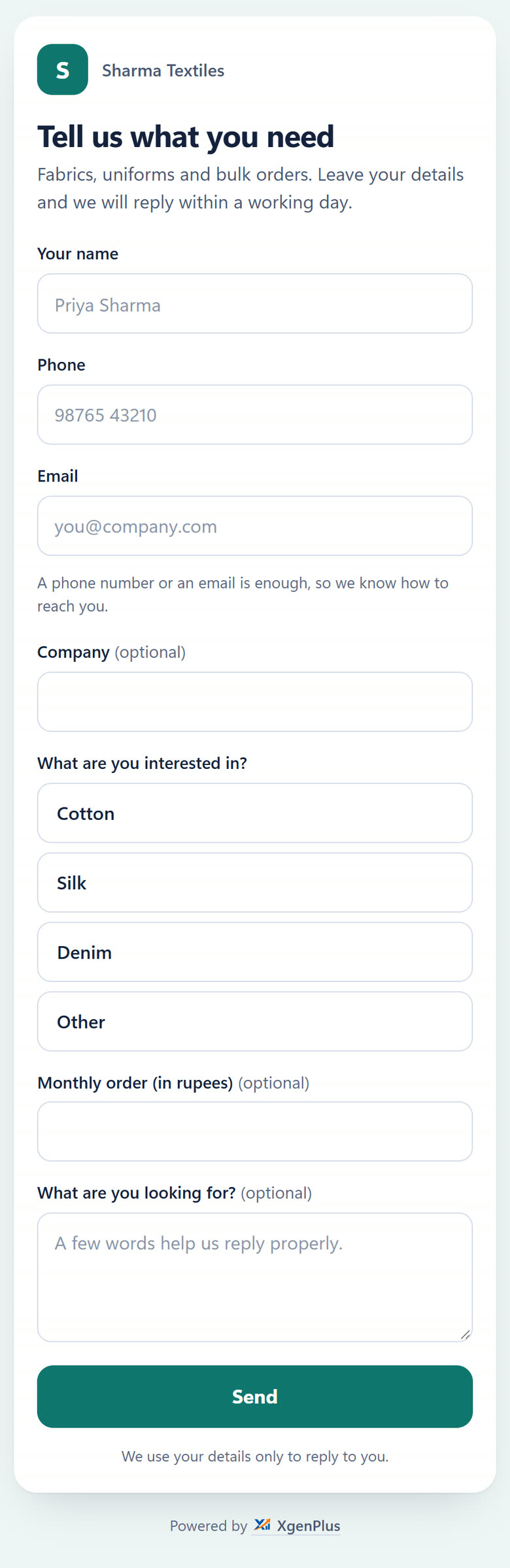
What the code looks like
The snippet is a short piece of HTML that shows your form inside your page. Your copy already has your own link filled in. The shape is:
<iframe src="YOUR-FORM-LINK" title="Contact us" style="width:100%;max-width:520px;height:760px;border:0;border-radius:16px" loading="lazy"></iframe>
If your page is wider or narrower, change max-width and height in the code.
Good to know
- Only the Domain Admin can copy the code.
- A lead from your page lands in the first stage, New, with where it came from.
Common questions
Will the form work on a phone?
Yes. It adjusts to phones.
My page is wider or narrower. What do I change?
Change max-width and height in the code you pasted.
Can I stop other websites from using my form?
Yes. Under Lead capture › More you can list the websites allowed to send leads from a browser.
Was this page helpful?
Updated 2026-11-29
