

Keep a personal to-do list
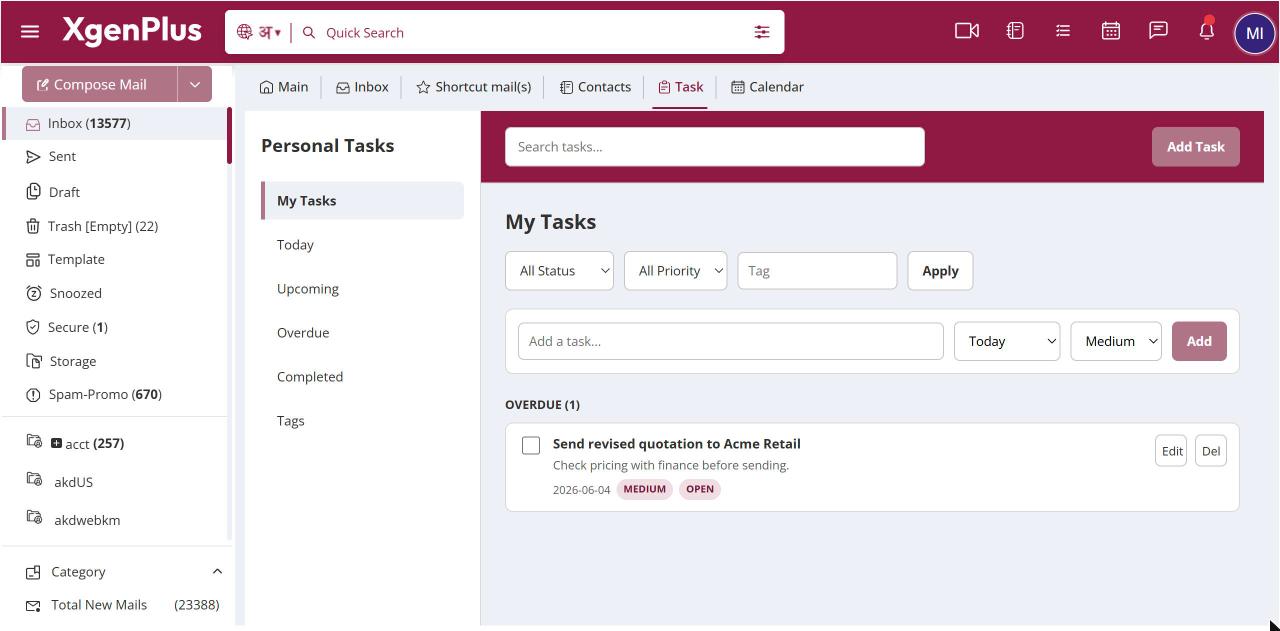
To open your tasks, click the Task icon in the top bar. Your list is grouped into Overdue, Today, Tomorrow, Upcoming, No date and Completed. Use the left sidebar to switch between My Tasks, Today, Upcoming, Overdue, Completed and Tags. Your tasks are private and only you can see them.
For: EveryoneWeb
How to keep a personal to-do list
- Click the Task icon in the top bar.
- Choose a view in the left sidebar, for example Today or Overdue.
- Click a task's Edit button to see or change its details.
When to use it
Meera, a sales manager at acme.in, opens Task every morning and checks Overdue for follow-ups she missed the day before.
Options
| View | Shows |
|---|---|
| My Tasks | All your tasks, grouped by due date. |
| Today | Tasks due today. |
| Upcoming | Tasks due later. |
| Overdue | Tasks whose due date has passed. |
| Completed | Tasks you have finished. |
| Tags | Tasks grouped by tag. |
Good to know
- Each task card shows the title, notes, when it is due, and its priority, status and tag.
- Each group shows how many tasks it has.
- The task list follows your mail colour theme and light or dark mode.
Common questions
Can I assign a task to a colleague?
No. Tasks are personal. To hand work to someone, send them a mail, or use Assignments if your organisation has it.
Do tasks show in my calendar?
No. Tasks and Calendar are separate. Create a calendar event if you need the time blocked.
Was this page helpful?
Updated 2026-10-28